Manage Groups⚓︎
Groups let you gather multiple users that share the same permissions and customizations, so you can manage them together instead of one by one. You can select a group instead of a single user, for example when associating a report to a user or when managing file access.

Info
The number of groups you can create depends on your subscription plan.
Add a group⚓︎
In the navigation menu, click Users and then User Groups to access the Groups Management. You can add new groups to your organization by individually adding them or importing them from Microsoft Entra ID.
Add a group manually⚓︎
- In the User Groups menu under Users, click Add Group.
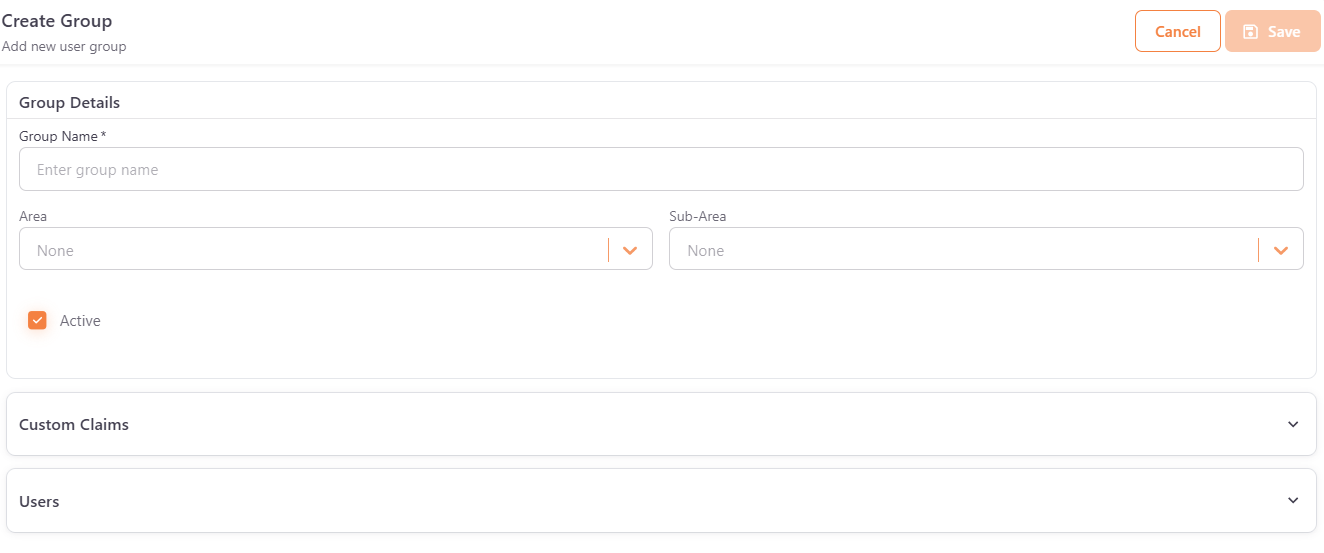
- In Group Details, enter the Group Name. Optionally, select an Area, Sub-Area and add Custom Claims.
- In the Users card, click Add user, select one or more users, and click Confirm. A group must have at least one user.
- Click Save.
Import a group from Microsoft Entra ID⚓︎
You can create a group from an existing group in your Microsoft Entra ID directory. The import adds the group's users to PowerBI Portal, and creates a group with the same name that contains them.
- In the Groups list, click Import from Microsoft Entra ID.
- Sign in with your Microsoft account, if asked.
- Select the group you want, and click Load group from Microsoft Entra ID. If the group has many users, click the button at the bottom of the list to load more. Load all the users before you save.
- Review the users. Each user needs at least one role and a valid email. Then click Save.
Group actions⚓︎
The Actions column of the Group list has the following actions for each group.
- Edit – opens the group to change the its details, custom claims, or users as needed. To remove a user from the group, click the delete icon next to the user in the Users card, and then click Save.
- Delete – removes the group. If the group is associated with reports, files or data hubs, a Delete Group dialog asks whether you want to continue. Click Delete Anyway to delete the group, or Cancel to keep it.