Playlists⚓︎
Playlists let you group multiple reports into an automated sequence that cycles through each report at a defined interval. You can then share playlists with users for dashboard-style viewing.
Create a playlist⚓︎
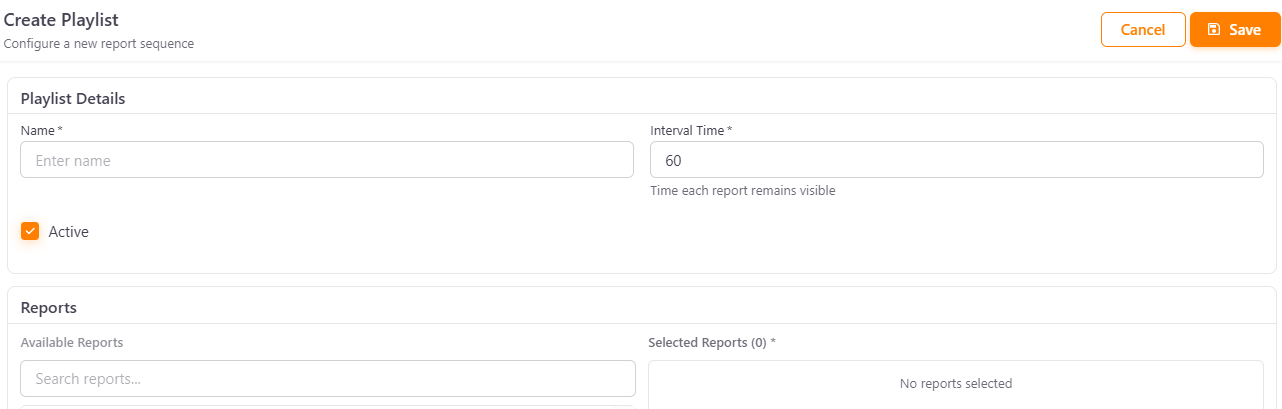
- Navigate to Resources > Playlists > List and click Add Playlist.
- Under Playlist Details, fill in the following fields:
- Name — a display name for the playlist.
- Interval Time — the number of seconds each report remains visible before advancing to the next. The default and minimum is
60seconds. - Active — toggle the checkbox to enable or disable the playlist.
- Under Reports, use the Available Reports field to search for and select the reports you want to include. Selected reports appear under Selected Reports, where you can drag them to change the order in which they play or remove them. You need to select at least one report.
- Click Save.
Note
Only reports that have already been added to PowerBI Portal are available for selection.
Configure playlist access⚓︎
To control which users can view a playlist:
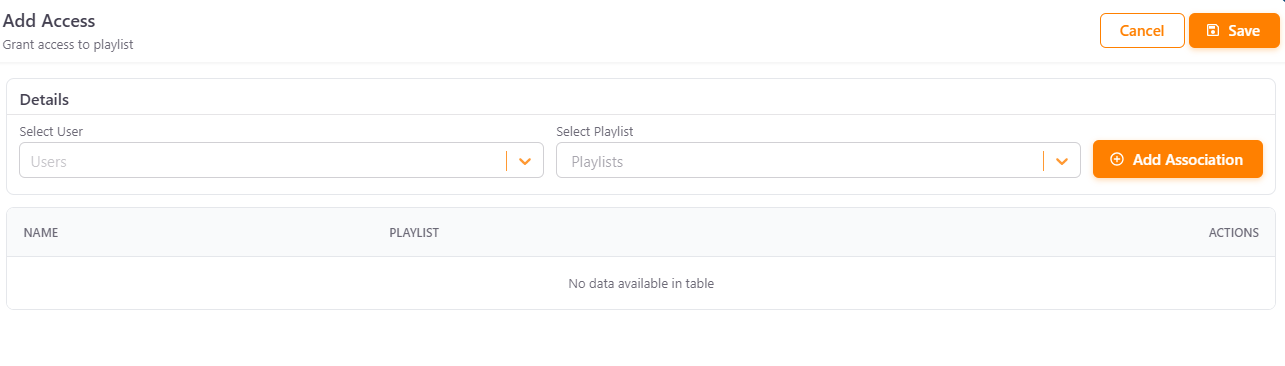
- Go to Resources > Playlists > Access and click Add Access.
- Select a User from the dropdown.
- Select the Playlist to associate.
- Click Add Association to grant access, then click Save.
All configured associations are listed in the table below, where you can review or remove them. An association that already exists is not added again.
Playlist list actions⚓︎
Each playlist has the following actions:
- Edit — opens the playlist to change the details described above.
- Delete — removes the playlist. Confirm the deletion when asked.
Playlist access list actions⚓︎
The Playlist Access Management page lists each User and the Playlist they have access to. In the Actions column there are the following actions:
- Copy URL — copies the link to the playlist for that user, including their access code, so they can open the playlist directly.
- Delete — removes the access of the user to the playlist. Confirm the deletion when asked.
Watch a playlist⚓︎
To open a playlist, copy its URL and paste it into your browser. You can get the URL with the Copy URL action in Resources > Playlists > Access. When you open it, the playlist starts playing automatically and moves to the next report after the Interval Time. At the bottom of the screen, a floating toolbar has the following buttons:
- Previous Report and Next Report — move to the previous or next report.
- Pause and Play — stop or resume the automatic sequence.
- Fullscreen — show the playlist in fullscreen. Press
ESCto exit.
The report information and the Previous Report, Next Report, and Pause/Play controls are only available when the playlist has more than one report.