Embedded PowerBI Portal⚓︎
The Allow Embedded Portal feature in DevScope PowerBI Portal enables seamless integration of PowerBI Portal into your website. By configuring a URL in the PowerBI Portal, your website can serve as the host for an embedded iframe, allowing you to fully leverage all the features of PowerBI Portal within your environment.
This means your users can access reports, dashboards, and all other PowerBI Portal functionalities directly from your website, ensuring a smoother experience without requiring them to navigate away.
Configure Embedded PowerBI Portal⚓︎
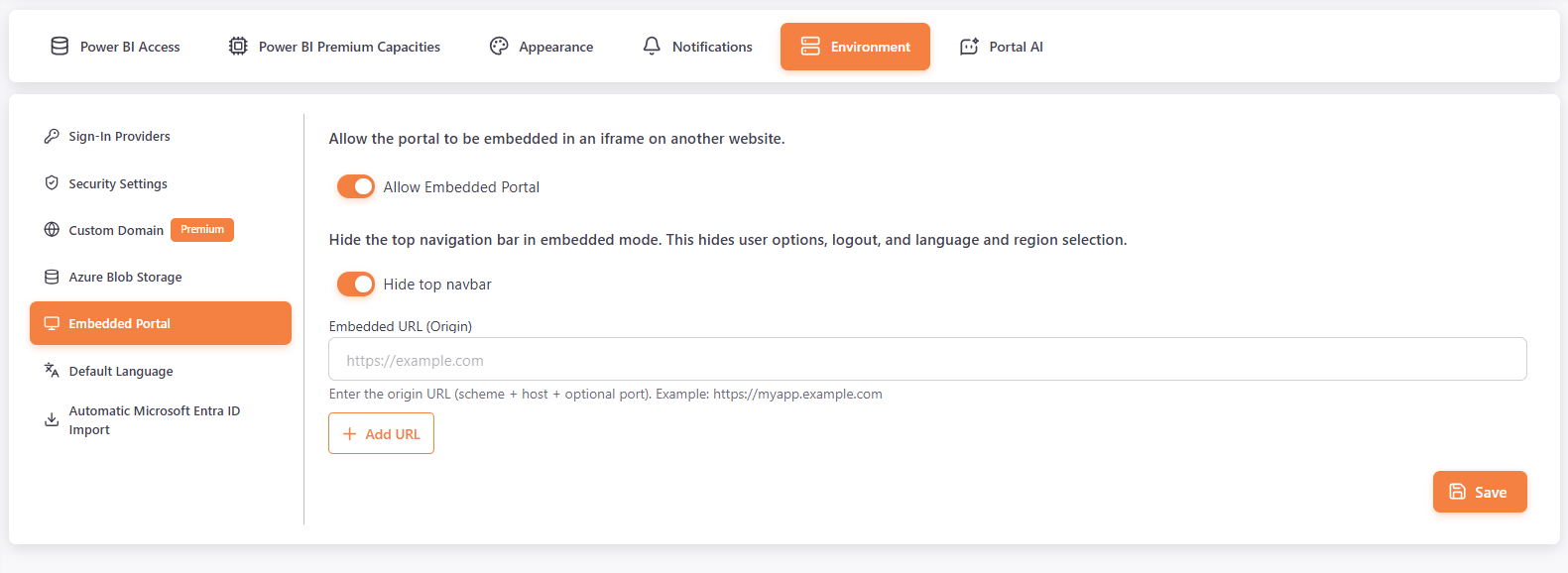
To configure an embedded PowerBI Portal, Master users go to Settings > Environment > Embedded Portal.
- Turn on Allow Embedded Portal.
- Optionally, turn on Hide top navbar to hide the top navigation bar in embedded mode. This provides a cleaner integration by hiding user options, the logout button, and language and region selection.
- In Embedded URL (Origin), enter the origin of the website that will embed PowerBI Portal, for example
https://myapp.example.com. - To allow more websites, click Add URL and enter another origin. Click the trash icon to delete a URL.
- Click Save.
At least one URL is required when the option is on.
We suggest creating a user specifically for this external sharing, giving this user access to the reports you want to share.
On the site where the PowerBI Portal will be embedded you need to have an iframe with the source directed to the Portal with the access code of the created user. Example:
<iframe src="https://app.powerbiportal.com/?accesscode=XXXXXXXXXXXX" width="100%" height="600" >
</iframe>
You can then access the application on an external website.