Manage Reports⚓︎
Add a new report to PowerBI Portal⚓︎
You can start adding new reports to PowerBI Portal by clicking Reports Management in the navigation menu, then Report List, and then clicking the Add Report button. There are three mandatory fields to fill when you add a report to PowerBI Portal:
- A unique name of your choice.
- The Power BI Embedded Url of the report in Power BI Online.
- The Power BI capacity used (previously configured).
Area and Sub-Area are optional fields. Reports sharing the same area name are grouped in PowerBI Portal’s Reports Viewer for ease of access.
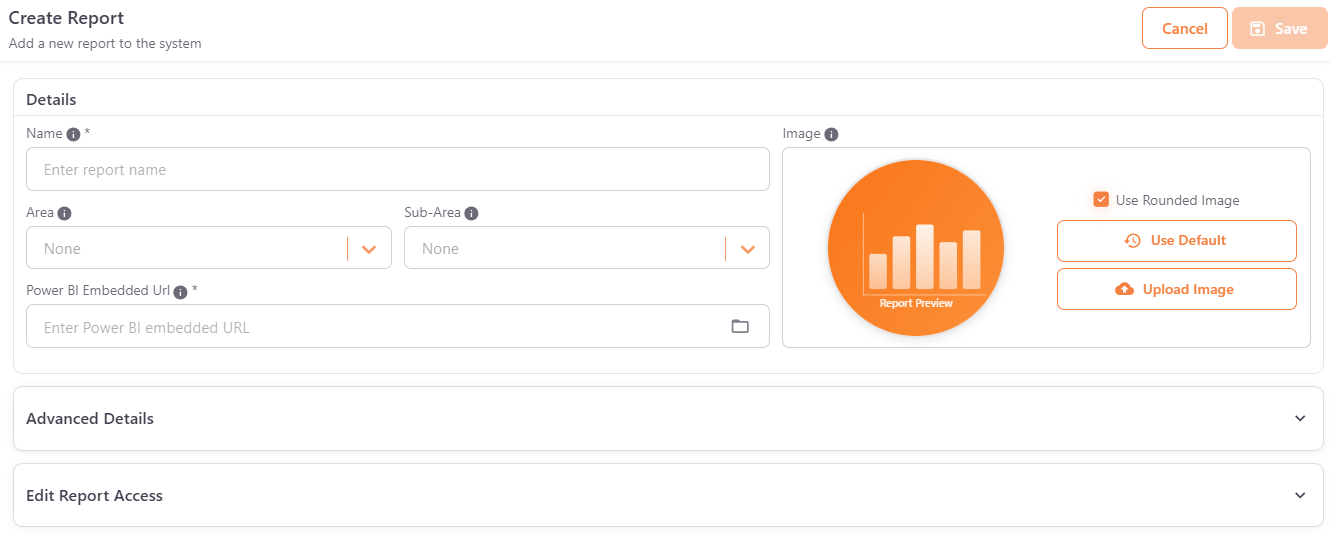
You can also click the report preview Image to replace it with one of your choice. Once you are done, click Save.
Before saving, PowerBI Portal tests the connection to Power BI. If the test fails, a message asks whether you want to save the report anyway: click Save Anyway to continue. If the report uses custom tokens, the connection can only be tested with a user context. In that case, test it later from Reports Management > Access, using the Test Connection action of an access entry created for a user or group.
Advanced Details⚓︎
When you add or edit a report, you can expand the Advanced Details panel. It is organized into the following tabs: General, Behavior, and Security & Filters. The Portal AI and Marketplace tabs are also shown when those features are available in your subscription.
General⚓︎
This tab contains general metadata and display settings for the report:
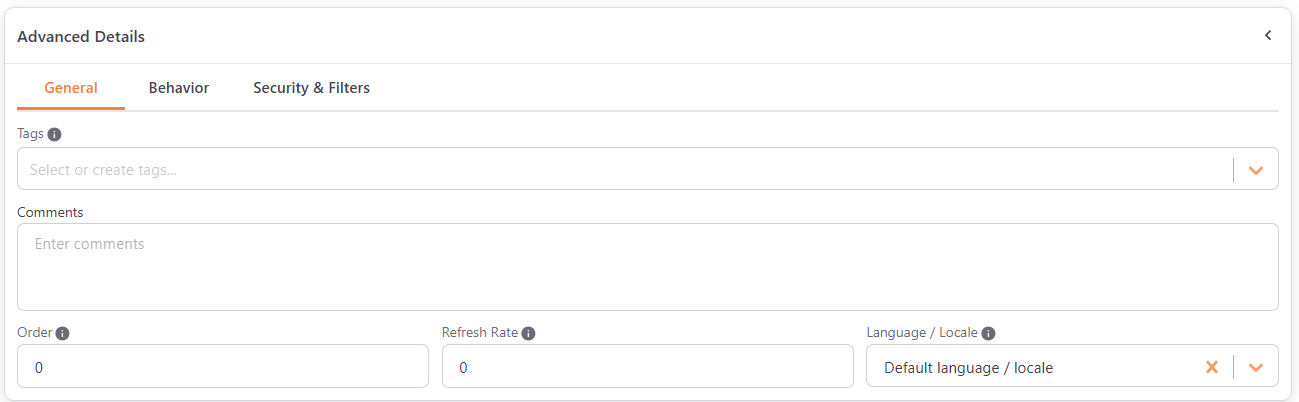
- Tags - Assign tags to help organize and filter reports.
- Comments - Add internal notes or comments about the report.
- Order - Set the order in which this report appears among other reports in the same Area. Lower numbers appear first.
- Refresh Rate - Define how frequently, in seconds, the report is automatically reloaded. Set to
0to disable. - Language / Locale - Set the language of the embedded report, including menus, filters, and number and date formatting.
Behavior⚓︎
This tab controls how the report behaves and what elements are visible to users. It is divided into three sections, plus an extra one for reports that can include paginated reports as visuals:
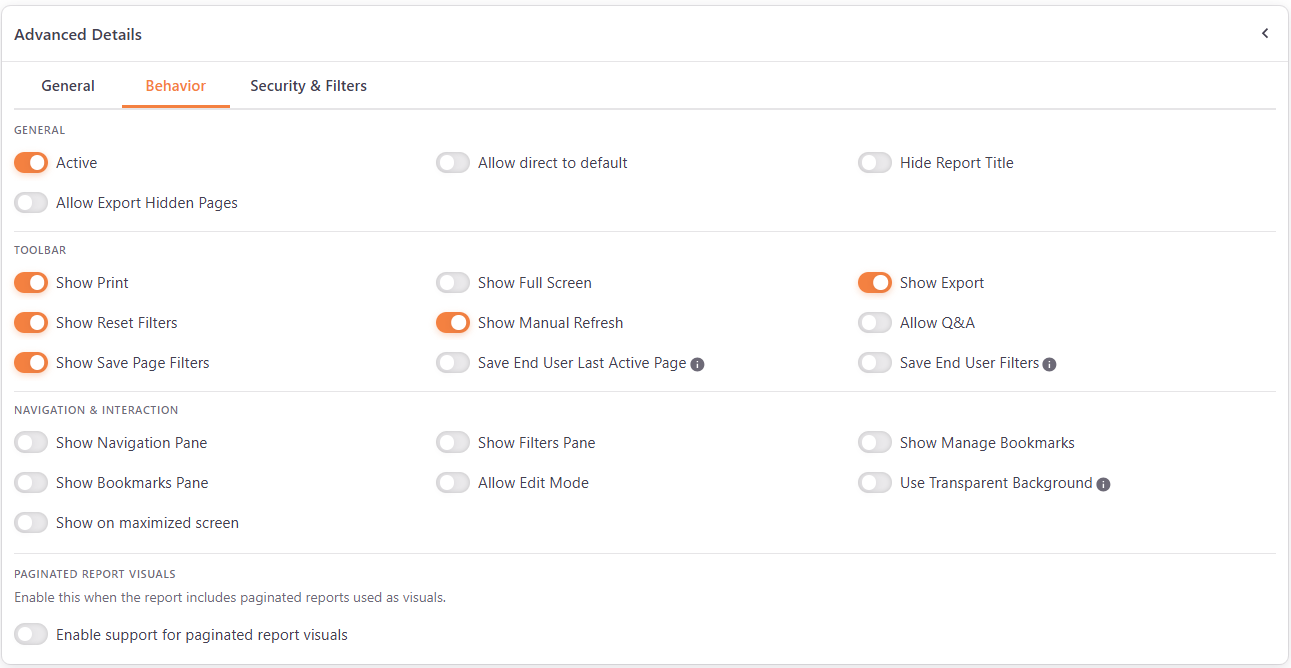
General
- Active - Toggle off to hide this report.
- Allow direct to default - Allow users to navigate directly to the default page of the report.
- Hide Report Title - Toggle on to hide the report title from users.
- Allow Export Hidden Pages - Include the hidden pages of the report when it is exported.
Toolbar
- Show Print - Show or hide the print button.
- Show Full Screen - Show or hide the full screen button.
- Show Export - Show or hide the option to export report data.
- Show Reset Filters - Show or hide the reset filters button.
- Show Manual Refresh - Show or hide the manual refresh button.
- Allow Q&A - Enable or disable the Power BI Q&A feature for this report. When enabled, you can also turn on Open Q&A by default and set a Q&A Question to use.
- Show Save Page Filters - Show or hide the option to save the filters of a page.
- Save End User Last Active Page - Automatically save the last page viewed by each user and reopen the report on that page during their next visit.
- Save End User Filters - Automatically save the filters applied by each user and restore them the next time the report is opened.
Navigation & Interaction
- Show Navigation Pane - Toggle the navigation menu (tabs) at the bottom of a Power BI report on or off. If you choose not to show it, the report displays the default page you set in Power BI.
- Show Filters Pane - Toggle Power BI filters side panel on or off.
- Show Manage Bookmarks - Show or hide the manage bookmarks option.
- Show Bookmarks Pane - Show or hide the bookmarks panel.
- Allow Edit Mode - Allow users to switch the report to edit mode. This option is only available in the Premium and Enterprise plans. See Report edit mode.
- Use Transparent Background - Make the report background transparent so the portal theme shows through.
- Show on maximized screen - Display the report maximized by default.
Paginated report visuals
This section is shown for Report Page and Visual items. Turn on Enable support for paginated report visuals when the report includes paginated reports used as visuals. You need to save the report before you can enable this option. After you enable it, PowerBI Portal detects the paginated reports the report references and shows how many it found (References found). If you later add, remove, or replace paginated reports used as visuals, click Detect/update paginated report visuals to detect them again.
Security & Filters⚓︎
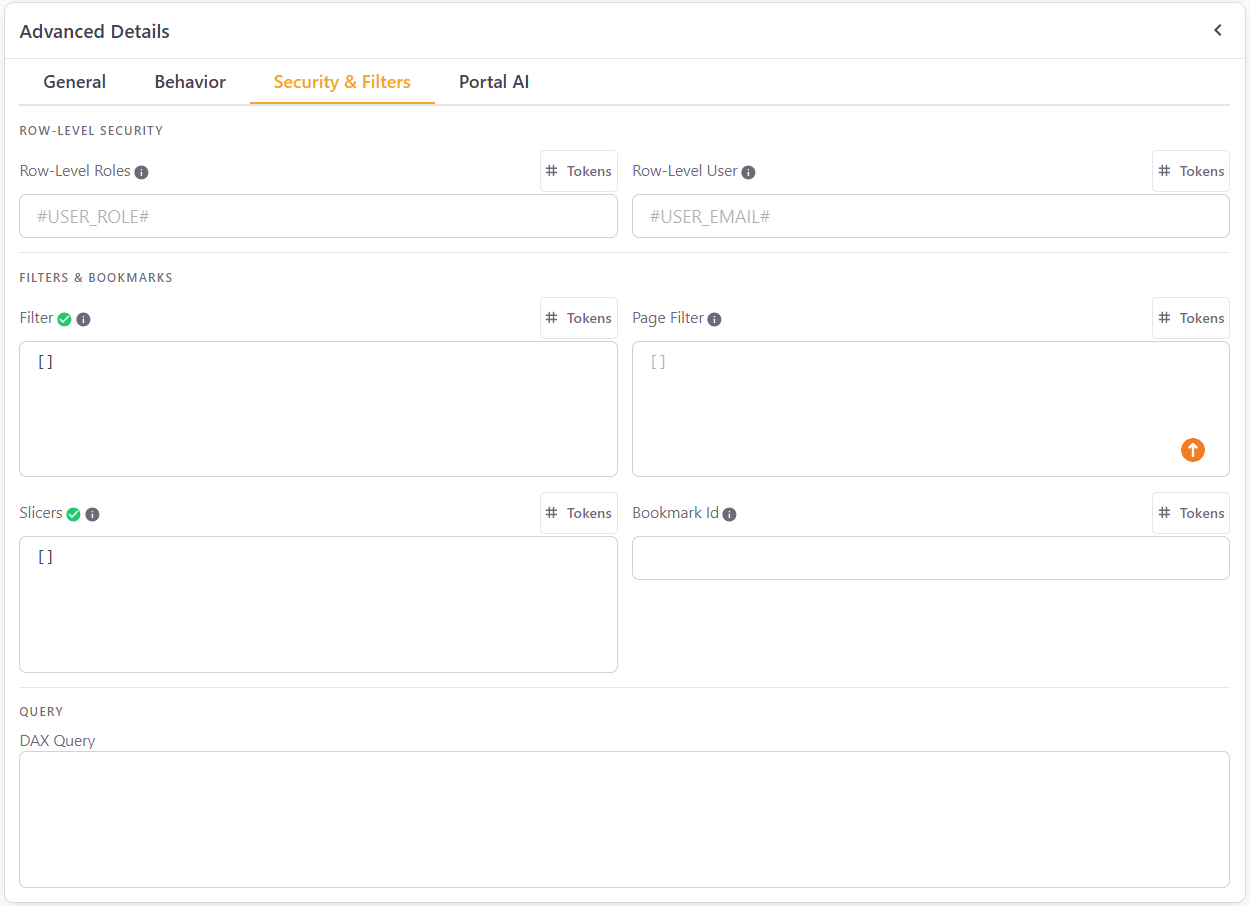
This tab controls row-level security, filters, and advanced query options.
Row-Level Security
Warning
Row-level security is only available in the Standard, Premium and Enterprise plans. See Licenses.
- Row-Level Roles - Roles are defined in Power BI Desktop to restrict data access. Enter the exact role name here, and separate multiple roles with commas. Use the
#USER_ROLE#token to dynamically apply the role based on the logged-in user. - Row-Level User - Override the identity used for row-level security. Use the
#USER_EMAIL#token to dynamically apply this restriction to the logged-in user.
Filters & Bookmarks
Which fields are shown depends on the report type:
- Filter - For advanced users with JSON knowledge. Paste a JSON filter to apply to the entire report. Shown for Manual, Report Page, and Visual items.
- Page Filter - Similar to Filter, but applied at the page level. Accepts a JSON array of filter objects. Shown for Manual, Report Page, and Visual items.
- Visual Filter - Apply a filter to a specific visual when the report loads. Shown for Visual items.
- Slicers - Define slicer values to apply when the report loads, in JSON format. Shown for Manual, Report Page, and Visual items.
- Bookmark Id - Enter a bookmark ID from Power BI Service to load the report with a specific bookmark state. Shown for Manual and Report Page items.
Query
- DAX Query - Enter a DAX query to be used in conjunction with the report.
For Paginated Report items, this tab shows Parameters and row-level security instead of the filters and query options. Click Add parameter to add a name and a value. The parameters are appended to the embed URL when the report loads. Row-level security only applies when the data source is a Power BI semantic model with row-level security.
The filter fields support tokens, as explained in Tokens and RLS.
Portal AI⚓︎
This tab allows you to enable AI-powered features for this report:

- Enable Portal AI - Toggle on to activate Portal AI for this report, allowing users to ask questions about the report data. You need to save the report first, and Portal AI is not available for every report type.
- Semantic Model Schema - Portal AI requires the semantic model schema to understand the report data structure and answer questions accurately. The Semantic Model ID is shown here, and you can click Get/Update Schema to retrieve or refresh it.
For a complete guide on setting up and using Portal AI, including environment configuration, permissions, and user access control, see the Portal AI documentation.
Report access⚓︎
The Access panel of the report form lets you choose the users and groups that can access the report. You can also manage access separately, as explained in Associate a report to a user.
Report list actions⚓︎
Each report has the following actions:
- Edit – opens the report to change the details described above. The form is the same one used to add a report, except that the Power BI Embedded Url can no longer be changed. In the Power BI Embedded Url field you can also use the icons to edit the report’s filters and bookmarks, or to clear them.
- Delete – removes the report. Confirm the deletion when asked. If the report is used by scheduled emails, a message lists them and you can click Delete report and scheduled emails to delete the report together with those emails. A report that has associated marketplace purchases cannot be deleted.
- Test Connection – checks that PowerBI Portal can connect to the report in Power BI. If the report uses custom tokens, the connection can only be tested from Reports Management > Access, using an access entry created for a user or group.
- Duplicate – creates a copy of the report. Confirm the action when asked. The user and group access settings and the marketplace settings are not copied to the new report. This action is only available while your subscription plan allows more reports.