Using Portal AI⚓︎
This guide explains how you can use Portal AI to ask questions about the data in your Power BI reports.
Accessing Portal AI⚓︎
When you open a report that has Portal AI enabled, you'll see a chat button in the bottom-right corner of the screen.

Click this button to open the Portal AI chat window.
Note
If you don't see the chat button on a report, it means either:
- Portal AI is not enabled for that report.
- Your administrator has not granted you AI access for that report.
Contact your administrator if you believe you should have access.
The Chat Window⚓︎
When you open the chat, you'll see a welcome screen with a greeting and a prompt to ask a question.
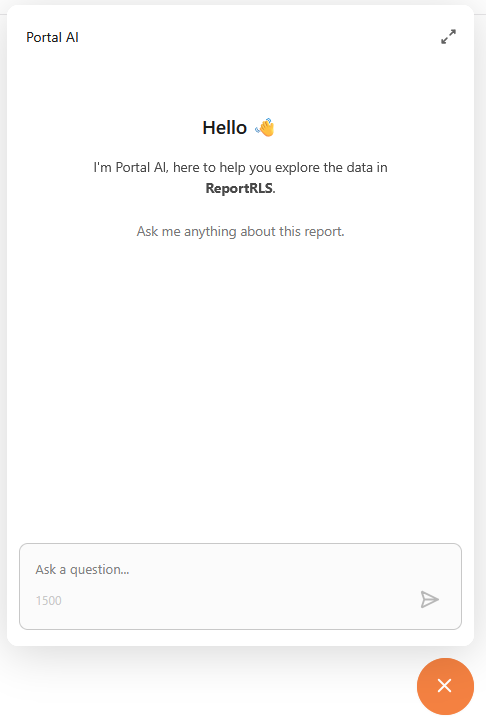
The chat window includes:
- Header: Shows the "Portal AI" title along with controls to clear the conversation, expand the chat, or close it.
- Message area: Where your questions and Portal AI's answers appear.
- Input field: Where you type your questions.
Asking Questions⚓︎
Type your question in the input field and press Enter or click the Send button. Portal AI will analyze your report's data and respond.
Example Questions⚓︎
Depending on the data in your report, you might ask questions like:
- "What were total sales in January?"
- "Which product category generated the most revenue?"
- "Show me a breakdown of orders by region."
- "What is the year-over-year growth rate?"
- "Compare Q1 and Q2 performance."
Portal AI understands the structure of your report's data, so you can reference the actual tables, columns, and measures that exist in the report.
Responses⚓︎
Portal AI responds in a conversational format and may include:
- Text with explanations and insights.
- Tables with data formatted in rows and columns.
- Lists highlighting key points or rankings.
You can continue asking follow-up questions in the same conversation. Portal AI retains context from previous messages, so you can refine your questions:
- "Now filter that by the European market."
- "What about the previous year?"
- "Show me only the top 5."
Expanded / Sidebar Mode⚓︎
On desktop screens, you can click the expand button in the chat header to dock the chat as a sidebar alongside your report.
In sidebar mode:
- The chat takes up a fixed width on the right side of the screen.
- The report adjusts to fill the remaining space.
- Click the collapse button to return to the floating popup view.
Note
Sidebar mode is only available on screens 1024 pixels wide or wider. On smaller screens and mobile devices, the chat always opens as a popup.
Clearing the Conversation⚓︎
To start a fresh conversation, click the trash icon in the chat header. This clears all messages and resets the context, which can be useful if you want to ask about a completely different topic.
Tips for Better Results⚓︎
- Be specific: Instead of "Show me data", try "Show me monthly revenue for 2025".
- Use the language of your data: If your report uses specific column names or measures, referencing them can lead to more accurate answers.
- Ask follow-up questions: Portal AI remembers context within a conversation, so you can build on previous answers.
- Start fresh when changing topics: If you're switching to an unrelated question, consider clearing the conversation first.
Usage Credits⚓︎
Portal AI uses credits to manage usage. Each interaction consumes credits depending on the query and response.
Usage is recorded in Usage History in License & Billing.
Info
When the available credits run out, you'll see a "Usage limit reached" message in the chat.
Limitations⚓︎
- Portal AI uses AI and may make mistakes: Always validate important data or business decisions against the original report or source data.
- Large or very complex datasets may result in slower responses or less detailed answers.
- Row-Level Security (RLS): Portal AI respects the RLS rules configured for the report in PowerBI Portal, so answers are limited to the same data the current user can see when viewing the report. Note that reports with RLS require a Premium or Embedded capacity. If no capacity is available, Portal AI will display a message explaining that RLS requires Premium capacity.
Error Messages⚓︎
If something goes wrong, Portal AI will display an informative message. Common messages include:
| Message | Meaning |
|---|---|
| "Usage limit reached for the current environment. Contact your administrator for more information." | The environment's available Portal AI usage has been exhausted. |
| "The license has expired. Contact your administrator for more information." | The environment's license needs to be renewed. |
| "Portal AI is not available for this environment." | Portal AI has been disabled by an administrator. |
| "Portal AI is not configured for this environment. Contact your administrator." | Portal AI hasn't been fully set up yet. |
| "You do not have access to Portal AI for this report." | Your administrator has not granted you AI access for this report. |