Overview⚓︎
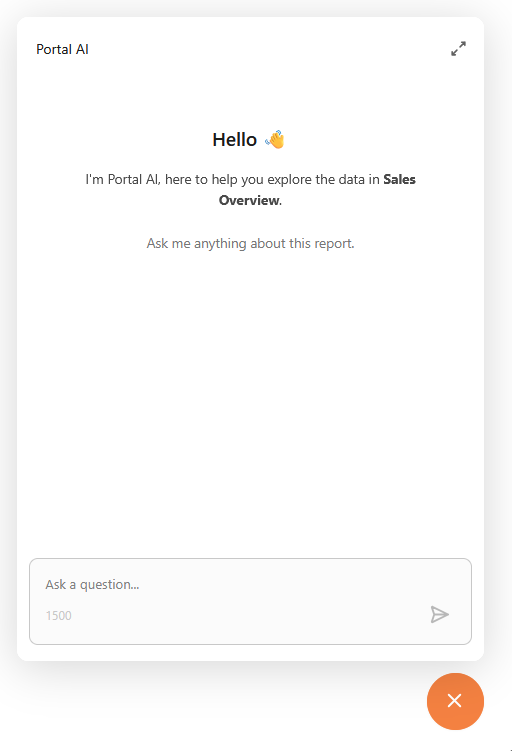
Portal AI is an AI-powered assistant built into PowerBI Portal that allows you to ask natural language questions about the data in your Power BI reports. Instead of navigating through filters and slicers, you can simply type a question, such as "What were total sales last quarter?" or "Which region had the highest revenue?", and Portal AI will analyze the report's data and provide an answer.
How It Works⚓︎
Portal AI connects to the semantic model (previously referred to as a dataset) behind each Power BI report. When you ask a question, Portal AI:
- Interprets your question using the report's data structure (tables, columns, measures).
- Generates a data query to retrieve the relevant information.
- Returns a conversational answer, often including tables or formatted data.
This means Portal AI can answer questions based on the actual data in your reports, not just general knowledge.
Key Features⚓︎
- Natural language questions: ask about your data in plain language. Portal AI answers in the same language you use in the conversation.
- Per-report activation: enable Portal AI only on the reports where it's needed.
- Access control: control which users and groups can use Portal AI on each report.
- Row-Level Security (RLS): Portal AI follows the RLS rules defined in each report, keeping answers aligned with the same data restrictions users have when viewing the report.
- Expandable chat: use the chat as a floating popup or dock it as a sidebar alongside your report.
- Formatted answers: get answers that can include tables, lists, and highlighted data.
What You Need to Get Started⚓︎
To set up Portal AI, you'll need:
- The Master role in PowerBI Portal to enable Portal AI in your environment settings.
- Access to the admin portal in Power BI, to configure the required Microsoft Power BI permissions.
- At least one Power BI report already configured in PowerBI Portal.
Setup Steps Overview⚓︎
| Step | Description | User Role |
|---|---|---|
| 1 | Enable Portal AI in your environment settings and configure Power BI permissions | Master |
| 2 | Configure reports by enabling Portal AI and synchronizing the semantic model | Master or Backoffice |
| 3 | Manage access per user or group (optional) | Master or Backoffice |
| 4 | Use Portal AI to ask questions about report data | Any role with report access |
Have questions? Check the Portal AI FAQ for answers to common questions.
Note
Portal AI is available for most report types, including Report Page, Visual, Dashboard Tile, and Paginated Report. The Manual and Dashboard (full dashboard) report types are not supported. See Configuring Reports for details.