Enable Portal AI⚓︎
This guide walks you through enabling Portal AI in your PowerBI Portal environment and configuring the required permissions in the admin portal in Power BI.
To enable Portal AI, you need the Master role in PowerBI Portal. You also need access to the admin portal in Power BI, or help from someone who can manage Power BI settings.
Step 1: Enable Portal AI in Settings⚓︎
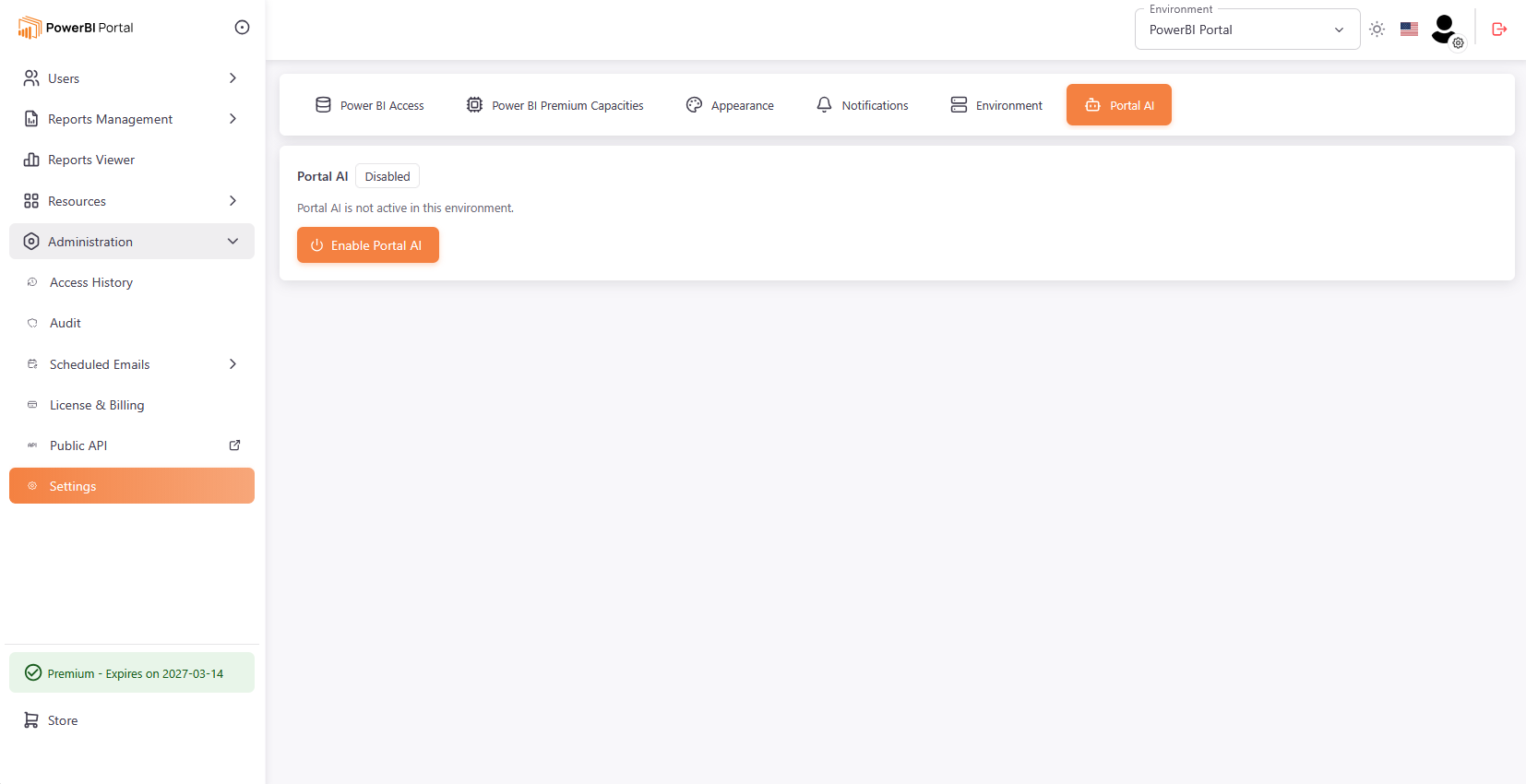
- In the PowerBI Portal navigation menu, go to Settings.
-
Select the Portal AI tab.
-
Click the Enable Portal AI button.
After you enable Portal AI, the Required Permissions dialog appears. This dialog lists the settings you must enable in Power BI for Portal AI to work correctly.
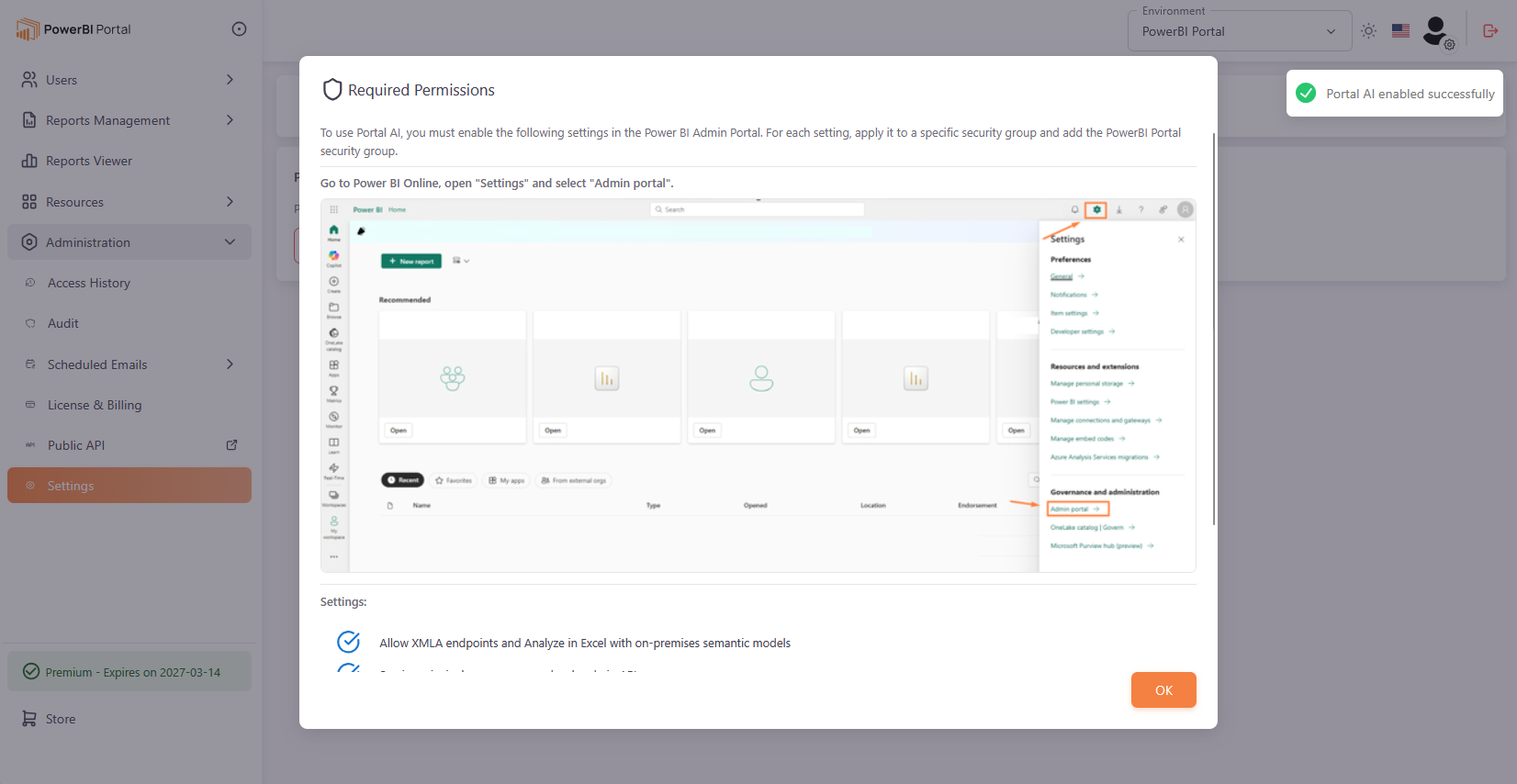
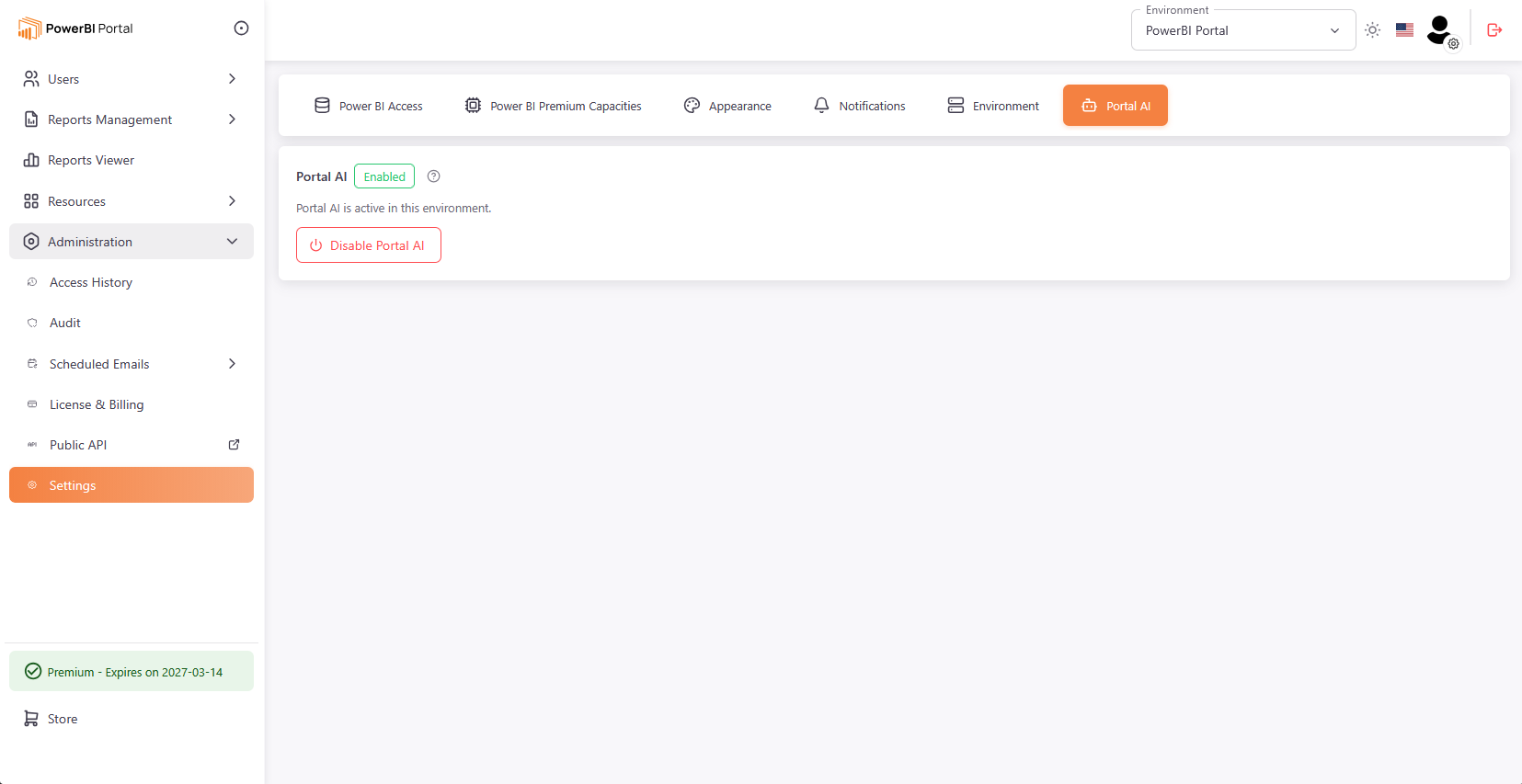
When you close the dialog, the status chip next to the title changes from Disabled to Enabled, and the description updates to "Portal AI is active in this environment."
Step 2: Configure Power BI Permissions⚓︎
Tip
You can reopen the Required Permissions dialog at any time by clicking the View required permissions icon next to the Enabled chip on the Portal AI tab.
How to Access the Admin Portal in Power BI⚓︎
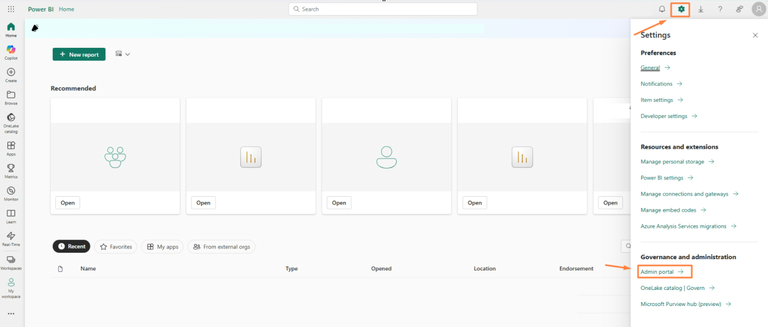
You can open the admin portal in Power BI directly.
Alternatively:
- Go to Power BI.
- Click the Settings gear icon in the top-right corner.
- Select Admin portal.
Settings to Enable⚓︎
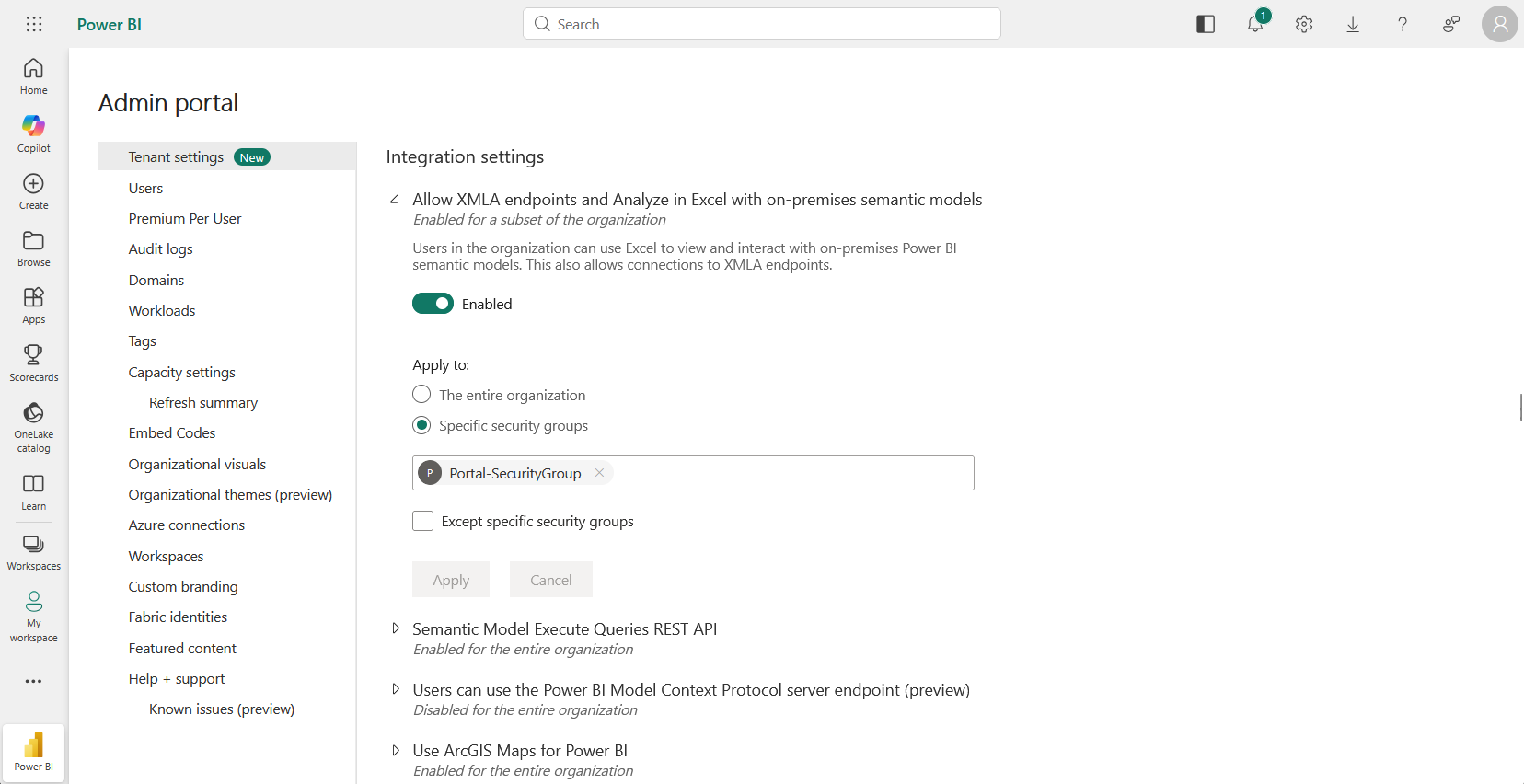
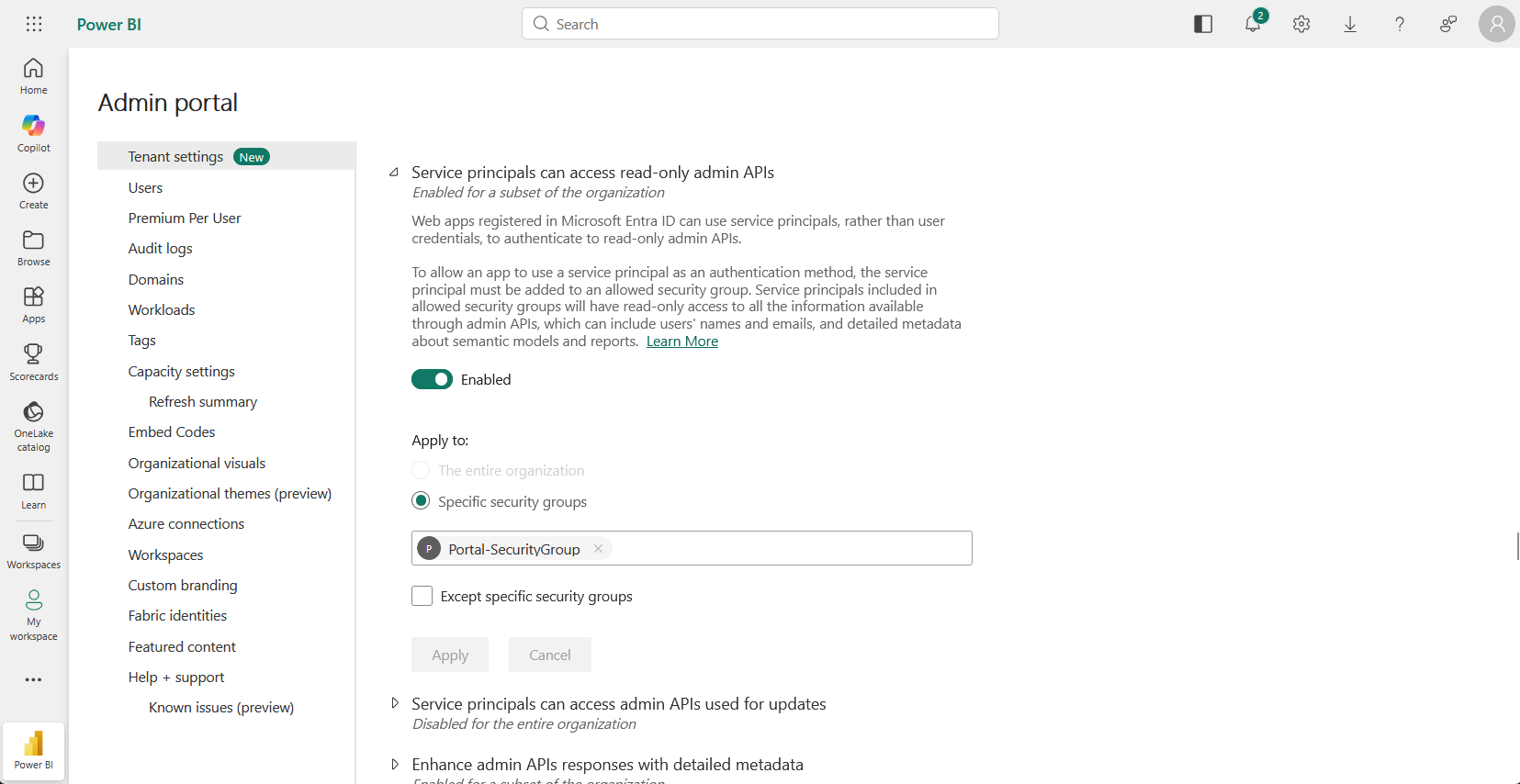
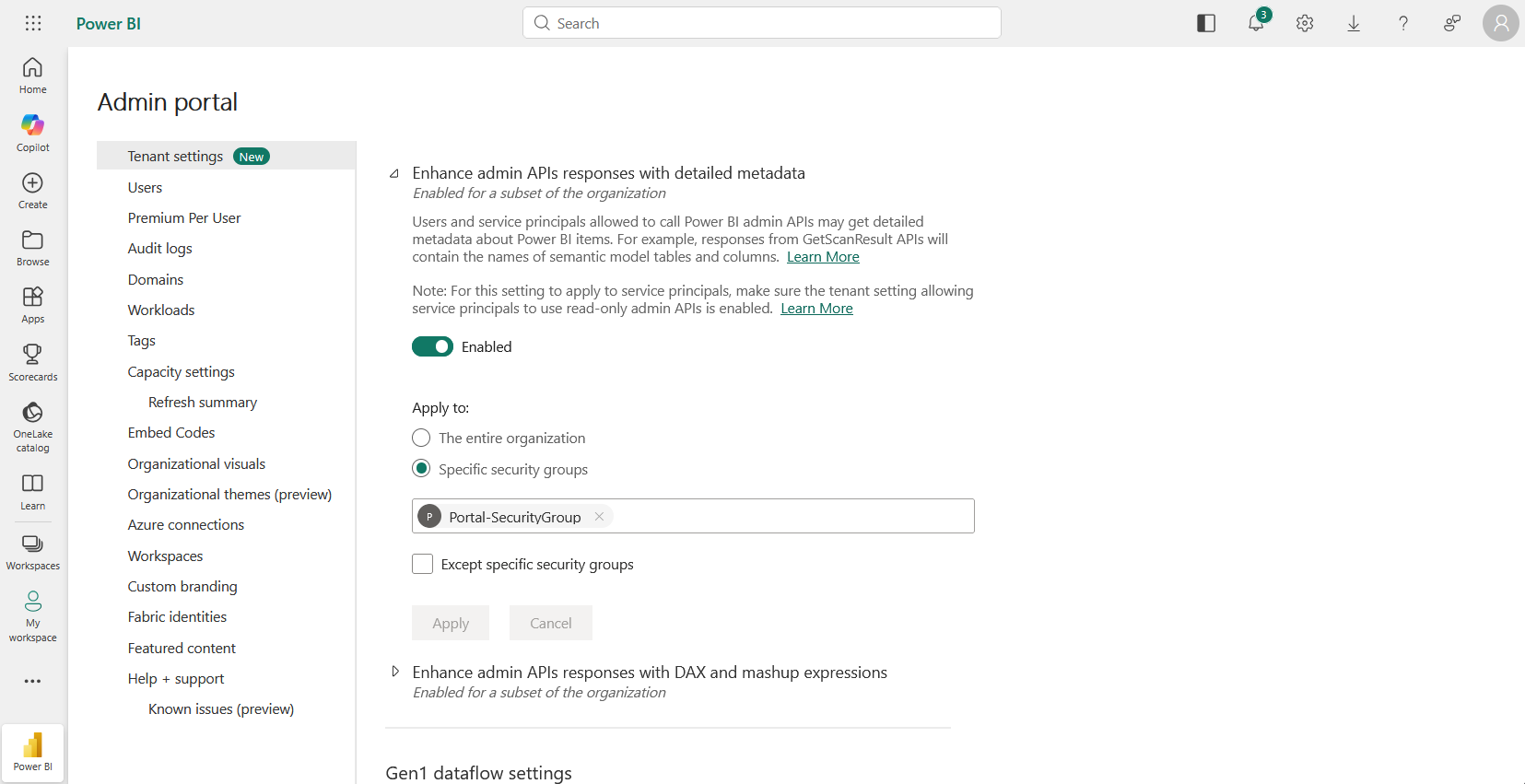
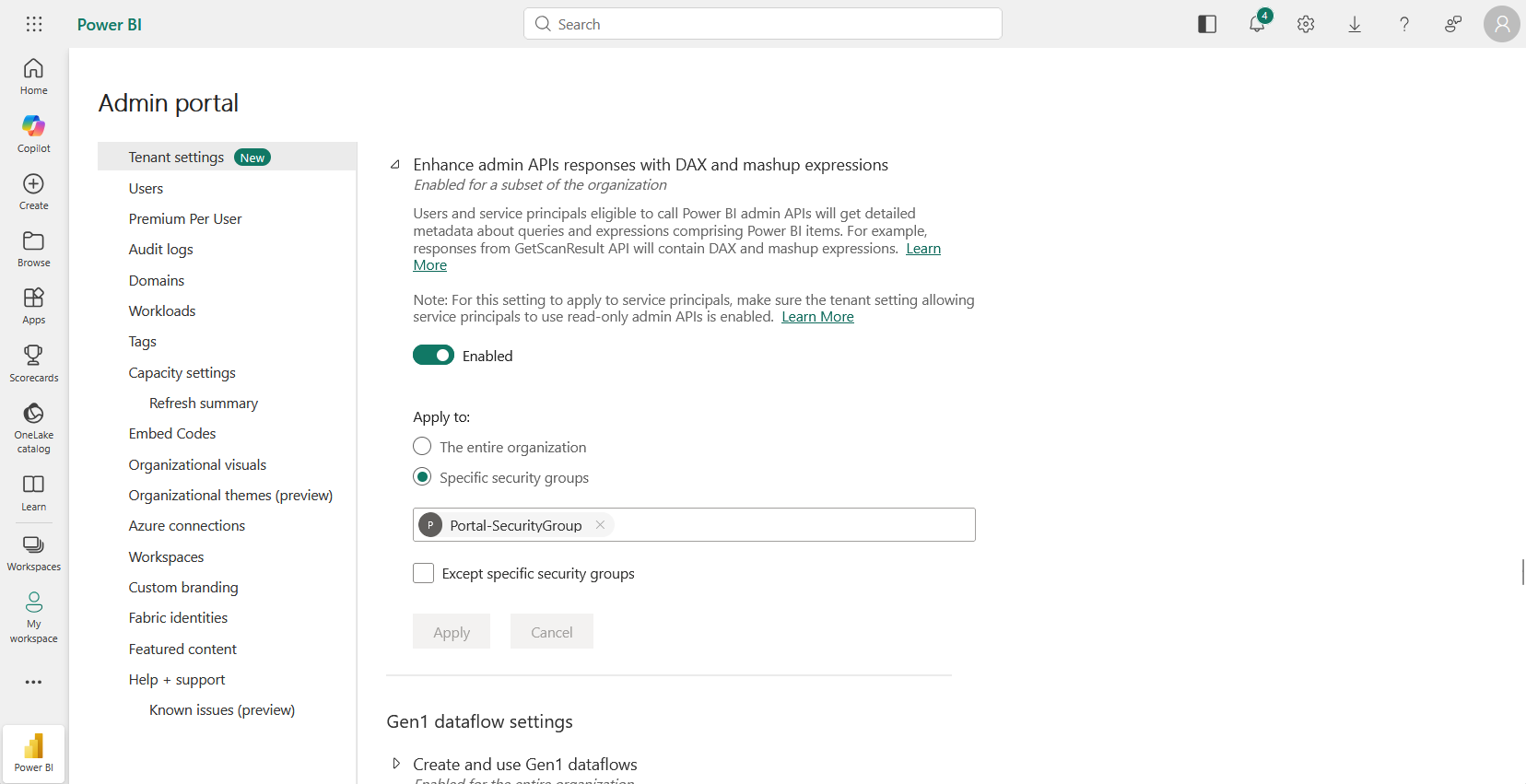
In the admin portal in Power BI, locate and enable each of the following settings. For each one, you should apply it to a specific security group and add the PowerBI Portal security group (the service principal group configured during PowerBI Portal setup).
1. Allow XMLA endpoints and Analyze in Excel with on-premises semantic models⚓︎
This setting allows PowerBI Portal to connect to the semantic models via XMLA endpoints, which is the primary method used by Portal AI to read the data structure and execute queries.
2. Service principals can access read-only admin APIs⚓︎
This setting allows the PowerBI Portal service principal to access the Power BI admin APIs needed for reading workspace and semantic model information.
3. Enhance admin APIs responses with detailed metadata⚓︎
This setting enables the admin APIs to return detailed metadata about tables, columns, and measures in semantic models, which Portal AI needs to understand the data structure.
4. Enhance admin APIs responses with DAX and mashup expressions⚓︎
This setting allows the admin APIs to return DAX expressions and measure definitions, which Portal AI uses to understand calculated fields and business logic in the semantic model.
Changes may take up to 15 minutes to take effect
After enabling these settings in the admin portal in Power BI, it may take up to 15 minutes for the changes to propagate. If schema discovery fails immediately after configuration, wait a few minutes and try again.
You can now proceed to configure individual reports for Portal AI.
Disabling Portal AI
To disable Portal AI, return to the Portal AI tab in Settings and click the Disable Portal AI button. This deactivates Portal AI across your entire environment, and users will no longer see the chat widget on any report.