Capacity List⚓︎
The Capacity List allows you to register and manage Power BI Embedded or Microsoft Fabric capacities used for embedding reports in the portal.
Viewing configured capacities⚓︎
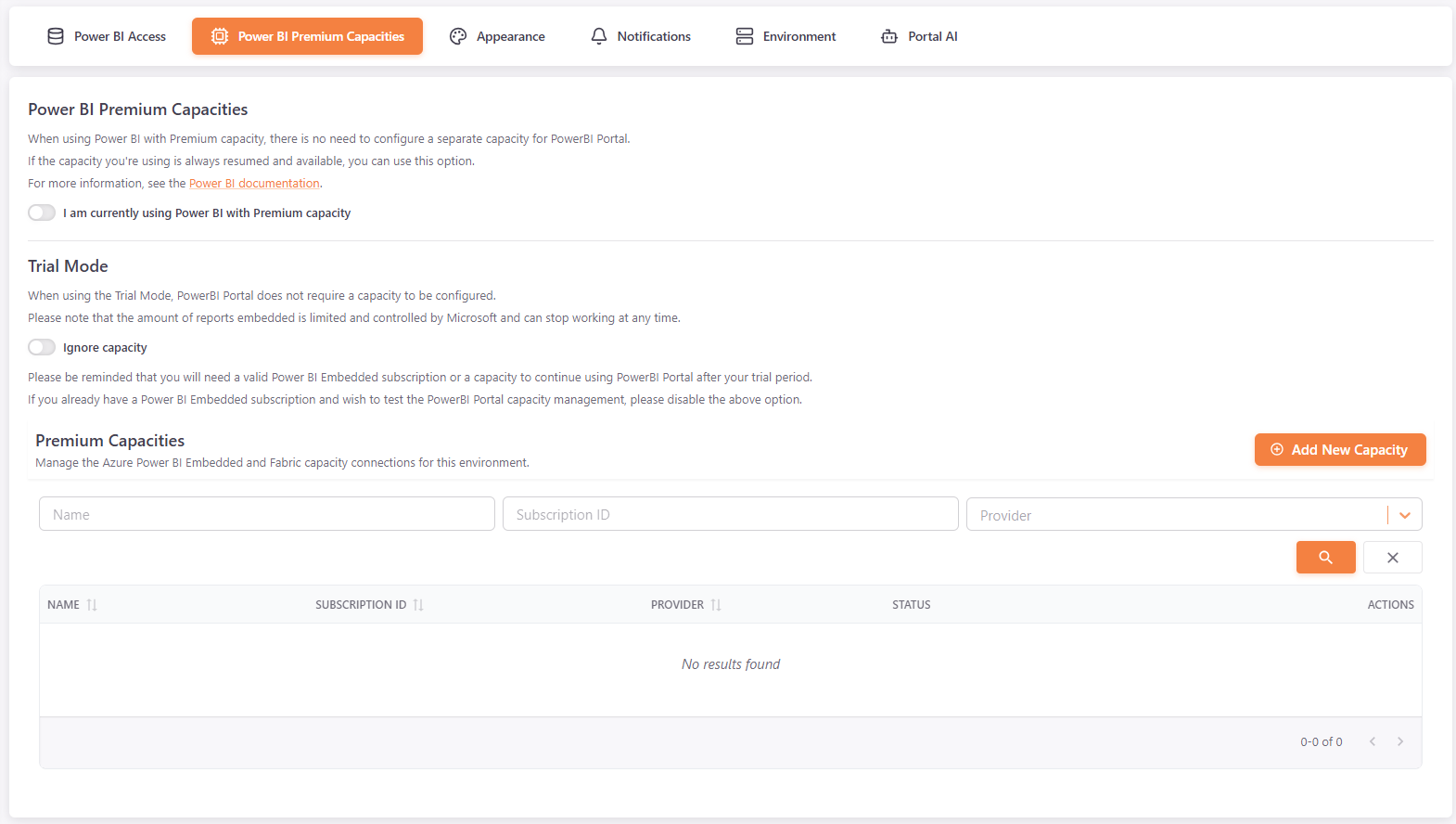
Navigate to Settings and select the Power BI Premium Capacities tab. The Capacity List displays all registered capacities with their Name, Subscription Id, Provider, Status and available Actions (edit or delete).
You can filter the list by provider, search by name, or search by subscription ID.
Adding a new capacity⚓︎
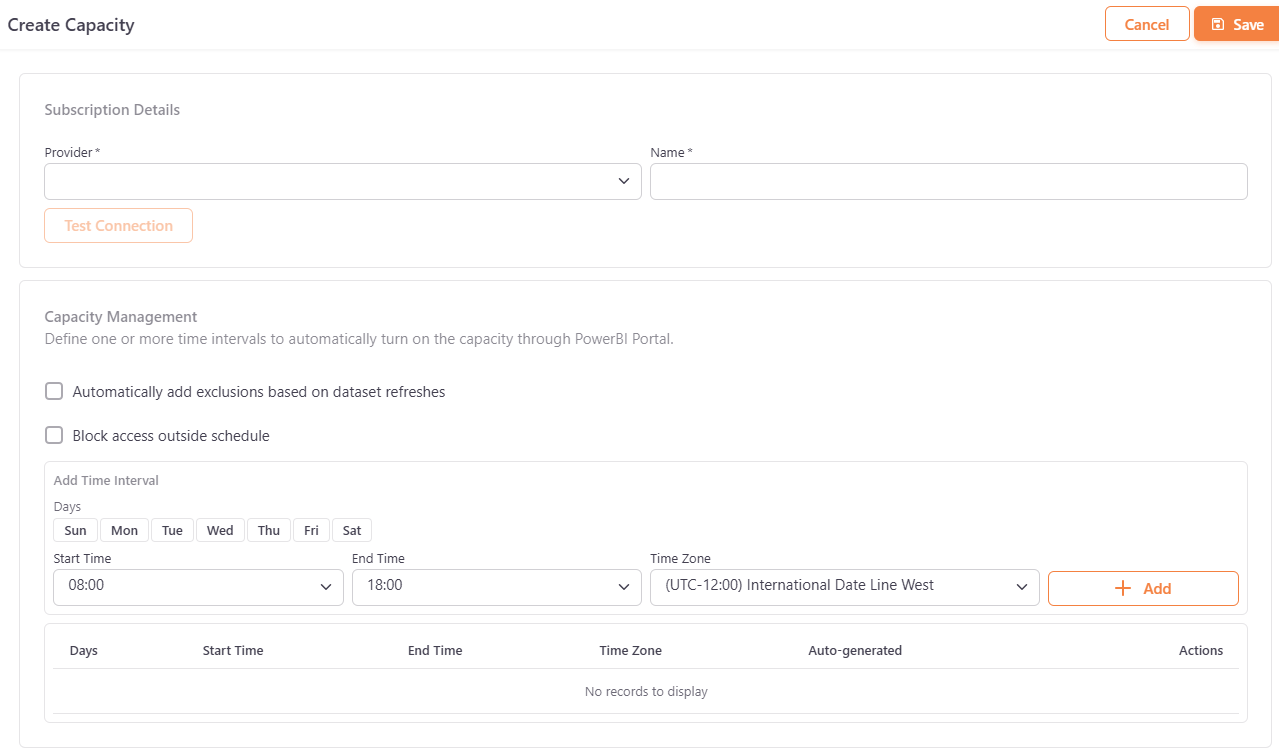
- Click Add New to open the capacity creation form.
- Under Provider, select either Power BI Embedded or Microsoft Fabric.
- Then, fill the subscription details:
- Name — a display name for the capacity.
- Subscription Id — your Azure subscription identifier.
- Resource Group — the Azure resource group containing the capacity.
- Resource Name — the name of the capacity resource.
- Power BI Embedded Timeout — the timeout value in seconds (default is
20).
Tip
Use the Test Connection button to verify your capacity configuration before saving.
In the Capacity Management section, you can:
- Disable the automatic capacity management. When disabled, the capacity will no longer be automatically paused/resumed by the system.
- Configure time intervals to automatically turn on the capacity.
- Block access outside the defined schedule.
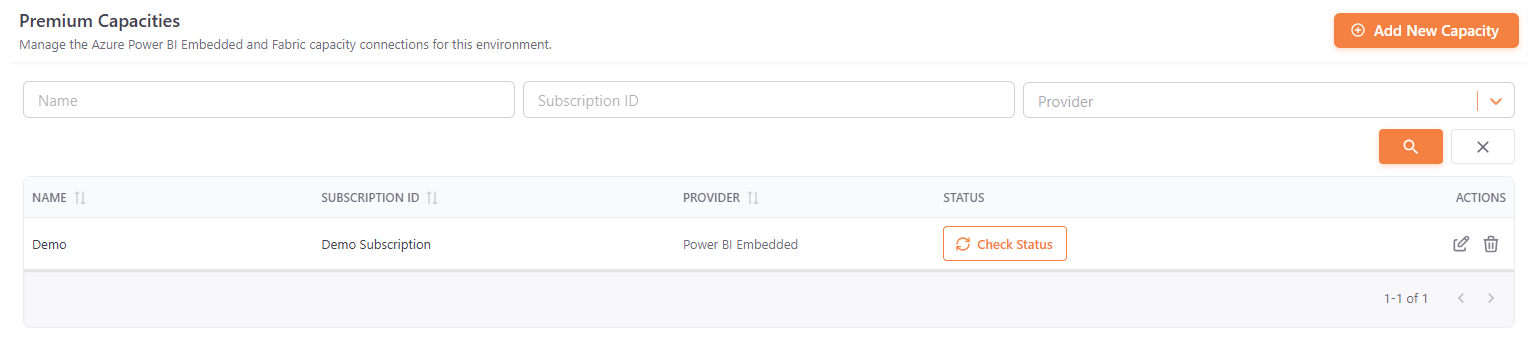
After saving, the new capacity appears in the Capacity List alongside any existing entries:
Associating a capacity with a report⚓︎
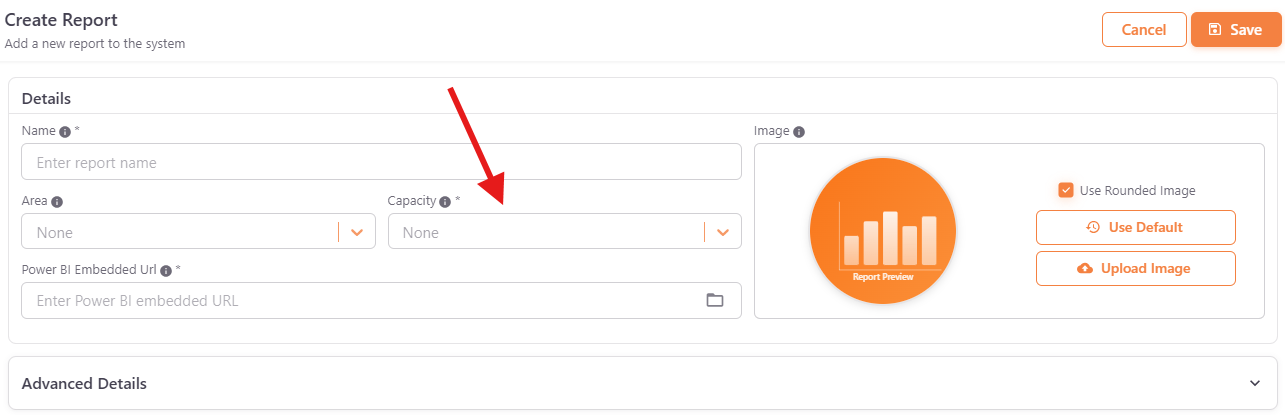
When adding or editing a report under Add Visuals, you must select a capacity from the Capacity dropdown. This determines which Power BI Embedded or Fabric capacity is used to render the report.