Associating a Report to a User⚓︎
Associating a report to a user
Now that you have your users and reports in PowerBI Portal, it’s time to associate one with the other. To get started, click Reports Management from the navigation button to go to the Access page, and click Add Access to go to the next screen:
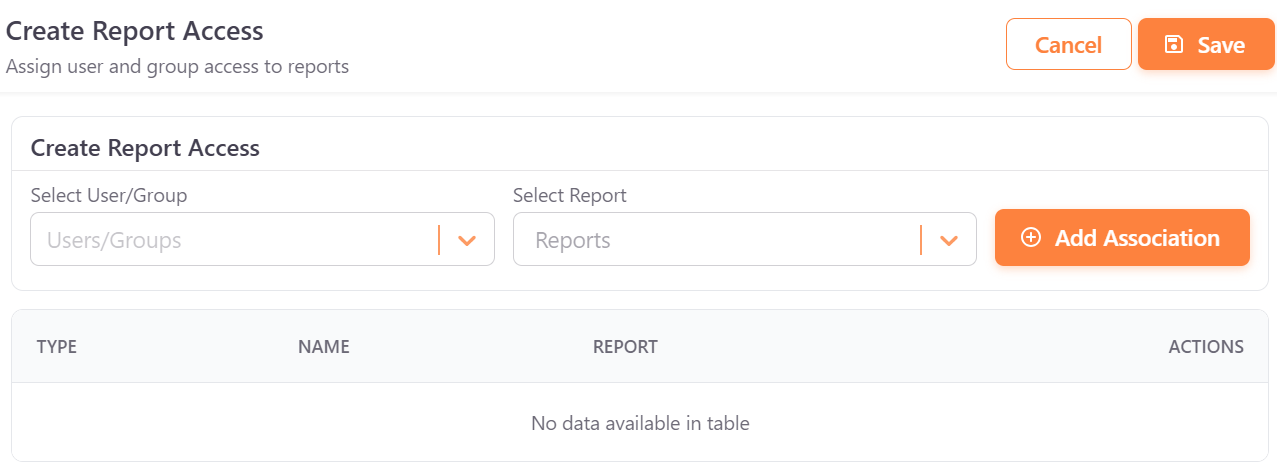
It’s really simple to pair a user with a report in PowerBI Portal. Just select the user or group of users from the first field, and the reports you wish to give them access to from the second field. PowerBI Portal offers tremendous flexibility when associating users to reports, so you can choose whether to give multiple people access to the same report or, instead, grant a single person access to several reports. After pairing a user with a report, click Add Association. You can keep associating as many users to reports as you wish. When you’re done, click Save.