How to Buy⚓︎
PowerBI Portal licenses are bought in a secure online store. You can buy a plan, or change it, from inside PowerBI Portal, or order directly from our online store. To compare plans, see Licenses.
Buy or change a plan in PowerBI Portal⚓︎
Master users can buy a plan or add-ons directly in PowerBI Portal:
- Go to Administration > License & Billing and click Change Plan to open the Store.
- Choose the billing period, Monthly or Annually, and the currency, EUR or USD.
- In the plans list, click Select Plan on the plan you want. Your current plan is marked Current Plan. Click Remove Plan to take it out of the cart.
- Optionally, under Additional Add-ons, click Add to Cart on each add-on you want. Use Add More to increase the quantity.
- Review the Shopping Cart and the Total, and click Proceed to Checkout.
- Complete the payment in the secure checkout page that opens.
When the payment is complete, PowerBI Portal shows Checkout Completed Successfully!. Wait a few moments while the order is processed. Your subscription is updated automatically.
Note
- Add-ons cannot be purchased during the trial period. Buy a plan first. See Licenses.
- You cannot buy in a different currency while you have an active subscription.
- Some add-ons are only available for certain plans. If an add-on is not available for your plan, the Store shows the plans where it is available.
Order in the online store⚓︎
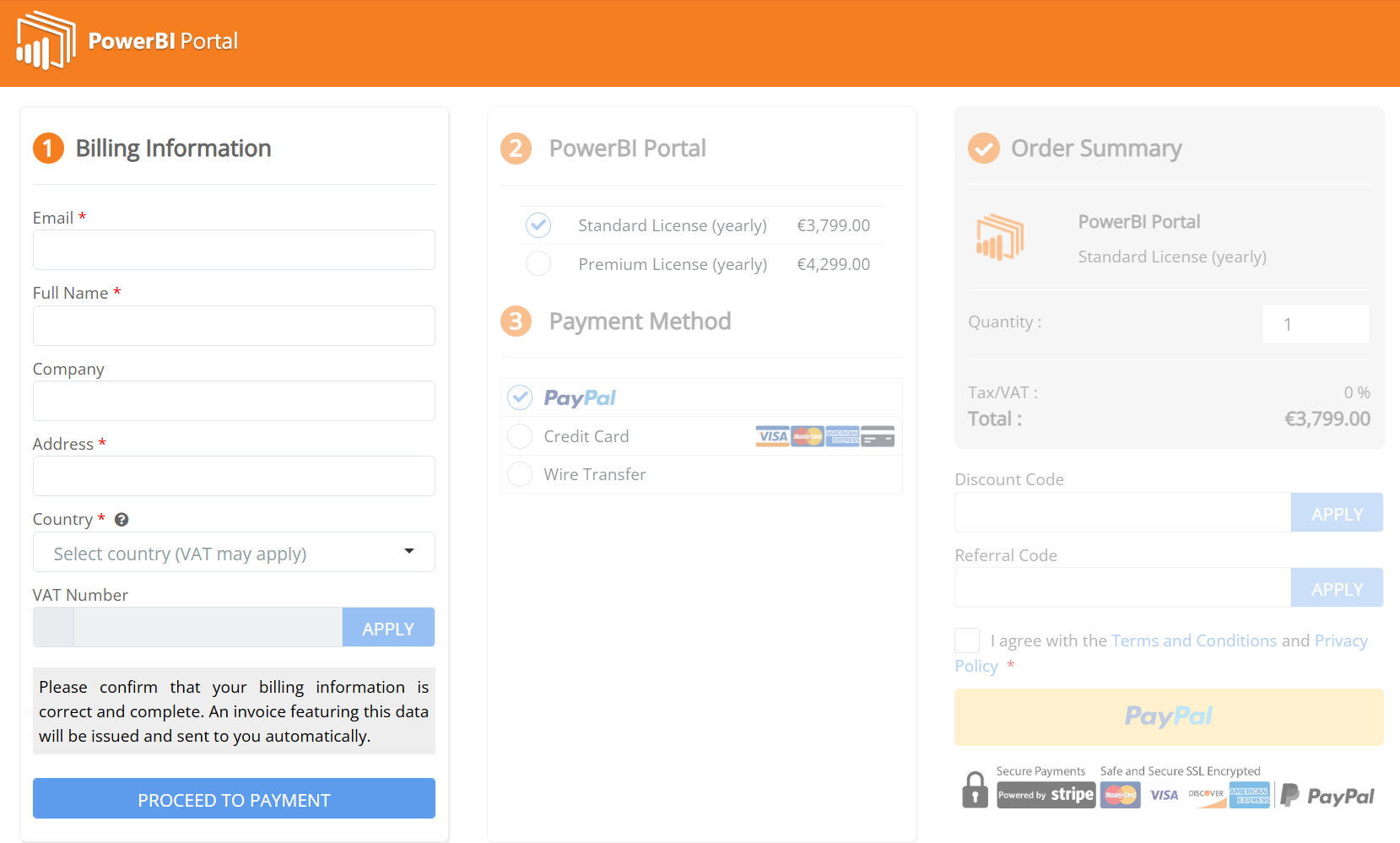
You can also order from our online store. At the first step, you’re asked to fill in your billing information.
Activate a license key⚓︎
If you received a license key, activate it in Administration > License & Billing. See License and billing.
Manage your subscription⚓︎
After you buy, Master users can review purchases and invoices, check the plan expiration date, and manage the subscription in Administration > License & Billing. See License and billing.
Contact us⚓︎
If you have further questions about buying a license, contact us at support@devscope.net. See also Support.