Automatic Microsoft Entra ID Import⚓︎
In Settings > Environment > Automatic Microsoft Entra ID Import, Master users automatically import users from their Microsoft Entra ID directory.
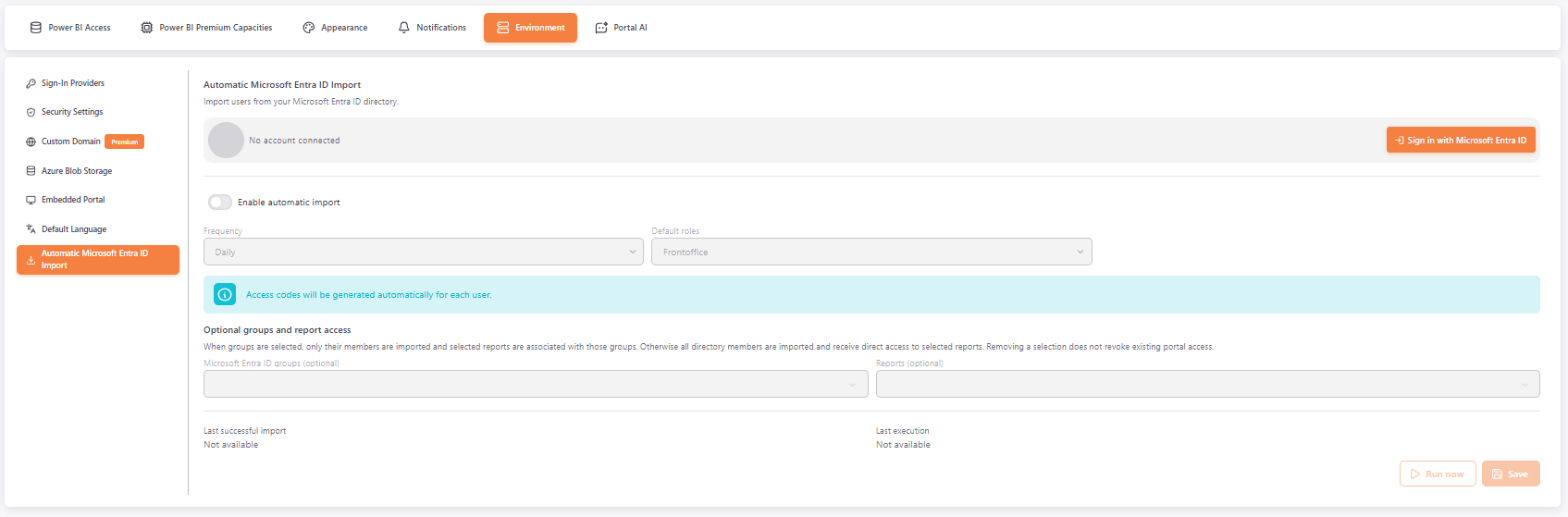
Connect an account⚓︎
- Click Sign in with Microsoft Entra ID and sign in in the window that opens. Allow popups for the portal if your browser blocks it.
- The account is shown in Signed in as.
If Sign in again is shown next to the account, sign in again to reconnect it.
To disconnect the account, click Sign Out and confirm. This removes the configured account and clears the automatic import settings. Existing users and access in the portal remain unchanged.
Configure the import⚓︎
- Turn on Enable automatic import. You must be signed in with Microsoft Entra ID, and select at least one role in Default roles.
- Optionally, turn on Update existing users. By default, only new or previously removed users are imported. When this option is on, existing users are also updated, receive the selected reports and are added to the default group, if one is set. Disabled users are never changed.
- In Frequency, select Daily or Weekly. For Weekly, select the Day of week.
- In Default roles, select the roles given to imported users. Access codes are generated automatically for each user.
- Optionally, set the following. Removing a selection does not revoke existing access in PowerBI Portal.
- Filter by Microsoft Entra ID groups (optional): when you select groups, only their members are imported. Otherwise, all directory members are imported.
- Reports (optional): imported users receive direct access to the selected reports.
- Default group (optional): imported users are added to this group.
- Click Save.
If some configured reports or groups are no longer available, a warning asks you to review and save the settings again.
Run the import⚓︎
Last successful import and Last execution show when the import last ran. To run it now, click Run now. The button is available when the account is connected, the import is enabled and there are no unsaved changes.
When the import finishes, a result window shows the number of users added, updated and skipped, and any skipped or failed groups, skipped reports and warnings.