License & Billing⚓︎
In Administration > License & Billing, Master users manage the subscription of the environment: they check the current plan and add-ons, activate a license, change the plan, and review purchases and add-on usage.
Current plan⚓︎
The Current Plan section shows:
- Plan Type: the plan of the environment. A Trial label is shown during a trial.
- Plan active until: the date until which the plan is active.
- Public ID: the license key of the environment.
- Active Add-ons: the add-ons of your subscription, such as Portal Agent AI Credits, with their expiration date. Each add-on shows either Unlimited, or how much is used and how much is available. This list is only shown when the environment has add-ons.
If your subscription renews automatically, a notice tells you so.

Activate a license⚓︎
- Click Activate License.
- In Activation Code, enter your license key.
- Click Activate License.
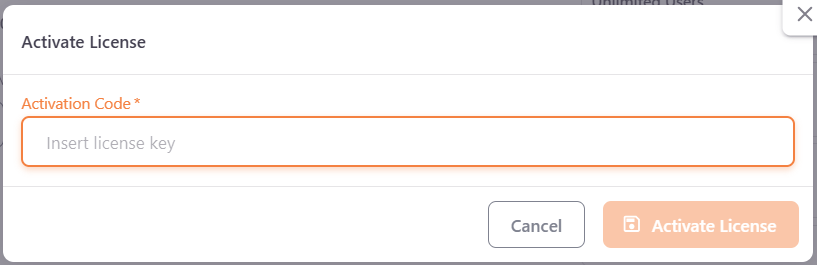
A message confirms that the license was activated. The key is sent to you after you buy a license. See How to Buy.
Change the plan⚓︎
Click Change Plan to open the store, where you can choose another plan or add-ons.
Manage the subscription⚓︎
If your subscription can be managed online, click Manage Subscription. It opens the subscription management page in a new tab. The button is not shown when this is not available for your subscription.
Purchases History⚓︎
The Purchases History lists your purchases with the following columns:
- Invoice: the invoice number.
- Total: the total amount.
- Issued Date: the date of the purchase.
- Status: the status of the order, such as Payment Succeeded, Payment Failed, Invoice Generated or Processing Invoice.
- Actions: click the download icon to download the invoice. It is only shown when the invoice is available.
The list has 10 purchases per page. If there are no purchases, it shows No purchase history yet.
Usage History⚓︎
The Usage History lists how your add-ons were used, with the following columns:
- Add-on
- Operation Type
- Quantity
- Date
- Message
Click Load More to see older entries. If there is no usage, it shows No usage history yet.

For example, Portal AI usage is recorded here.