Associate a Report to a User⚓︎
Once you have your users and reports in PowerBI Portal, it’s time to associate one with the other. To get started, click Reports Management from the navigation menu and then Access to go to the Report Access Management page, and click Add Access to go to the next screen:
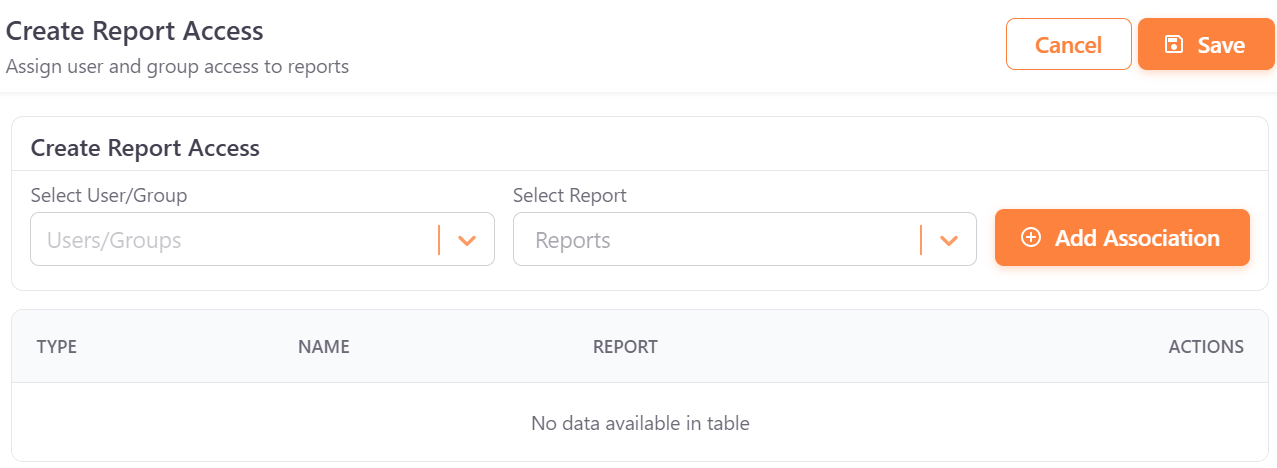
It’s really simple to pair a user with a report in PowerBI Portal. Just select the users or groups from the Select Users/Groups field, and the reports you wish to give them access to from the Select Reports field. PowerBI Portal offers tremendous flexibility when associating users to reports, so you can choose whether to give multiple people access to the same report or, instead, grant a single person access to several reports.
After pairing a user with a report, click Add Association. You can keep associating as many users to reports as you wish. When you’re done, click Save.
Report access list actions⚓︎
The Actions column has the following actions for each association:
- Edit – opens the report settings for that user or group, so you can override the report’s default settings only for them. For a description of the settings, see Manage reports.
- Delete – removes the access of the user or group to the report. Confirm the deletion when asked.
- Test Connection – checks that PowerBI Portal can connect to the report using the settings of that user or group. This is the way to test reports that use custom tokens, as explained in Tokens and RLS.
- Reset Override – only shown when the association is Overridden. Resets the settings of that user or group back to the report’s defaults. Confirm the action when asked.