Bookmarks⚓︎
The Bookmarking feature allows users to save and manage the current state of a report (bookmarks) within the application. This enhances user efficiency by enabling quick access to frequently used views or filters, reducing repetitive configuration steps.
Key Features⚓︎
- Save the Report State as Bookmarks Users can create bookmarks based on the current state of the report, including filter selections (e.g., date ranges, categories, statuses, etc.).
- Quick Access to Bookmarks Bookmarks are listed in the Manage Bookmarks dialog, allowing users to apply a saved bookmark with one click.
Info
The bookmarks saved are user specific and belong to the report where they were captured.
Requirements:⚓︎
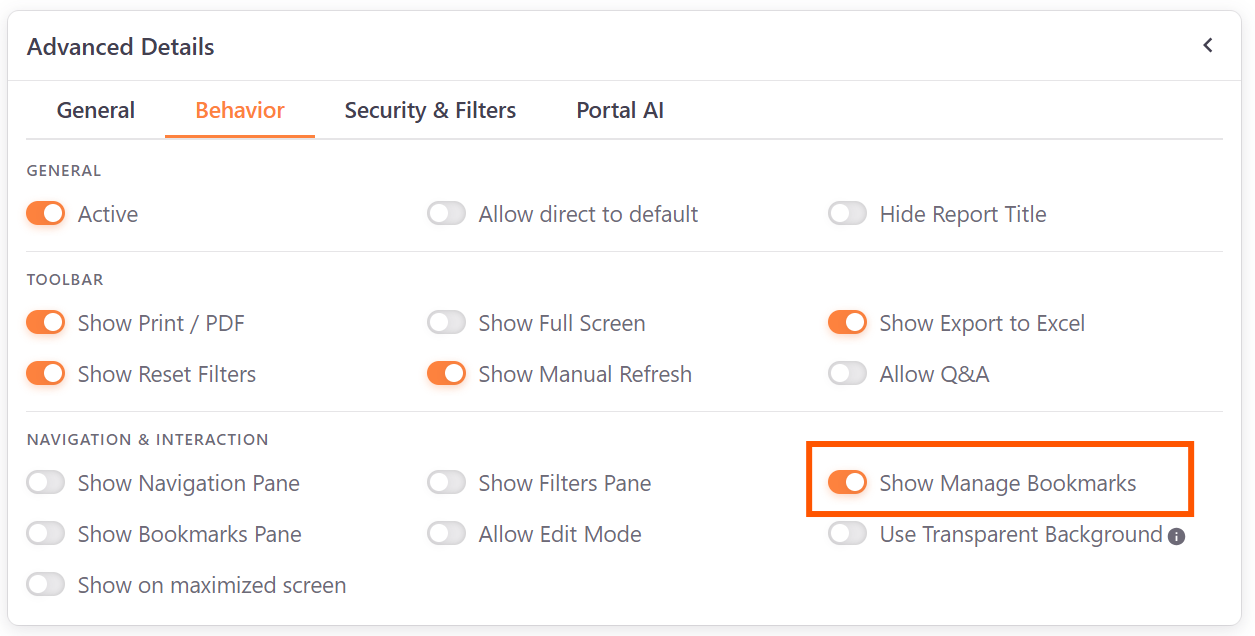
- The option to 'Show Manage Bookmarks' needs to be enabled on the report in the Portal:
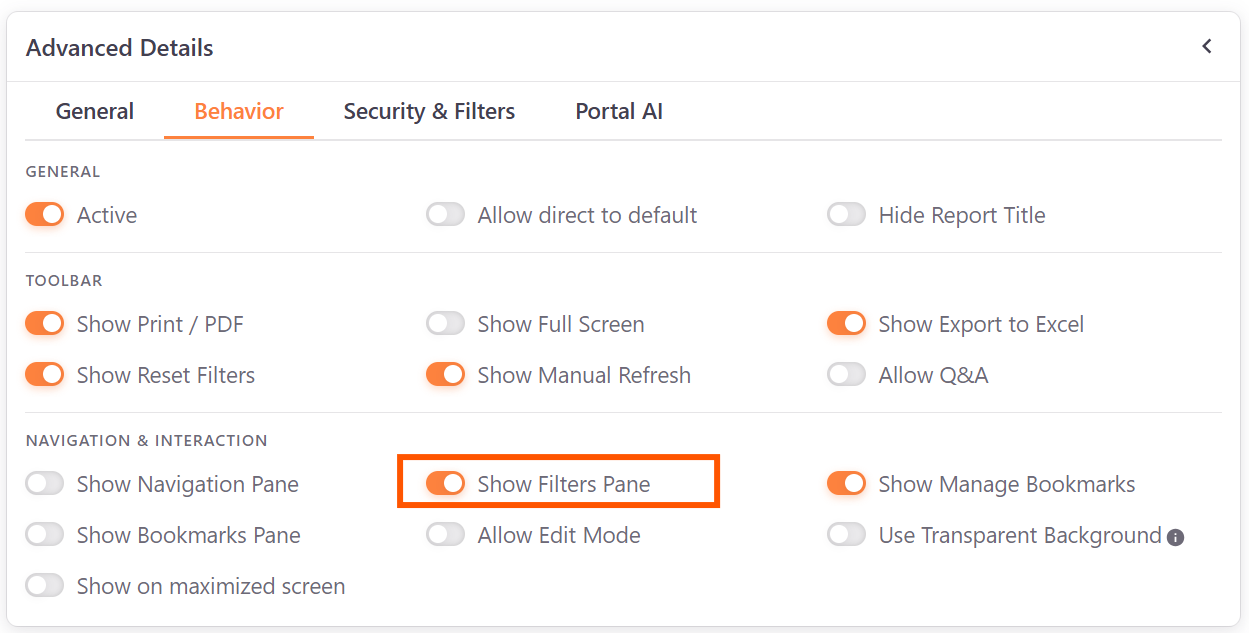
- If users will use the filter panel to apply the filters, the option to 'Show Filters Pane' also needs to be enabled:
How to Use:⚓︎
Creating a Bookmark⚓︎
- Apply desired filters in the filter panel or report page.
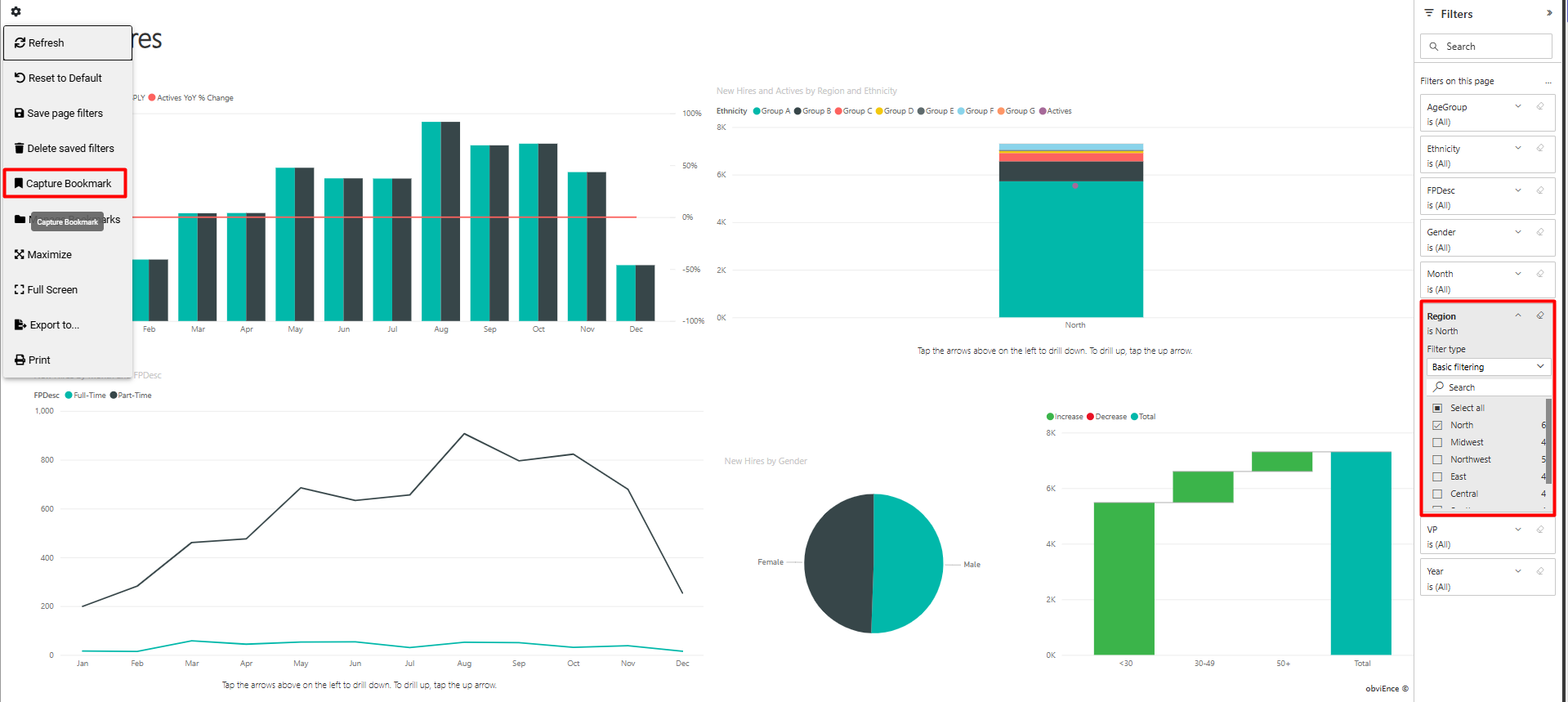
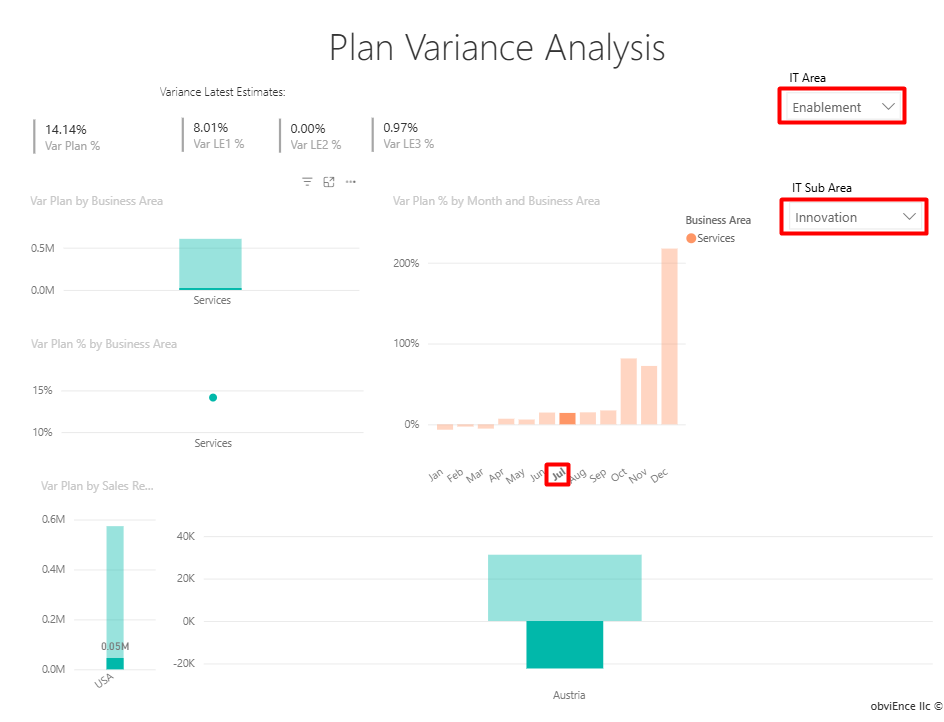
- You can also save filter contexts by applying a slicer value and/or selecting a filtering value on a visual:
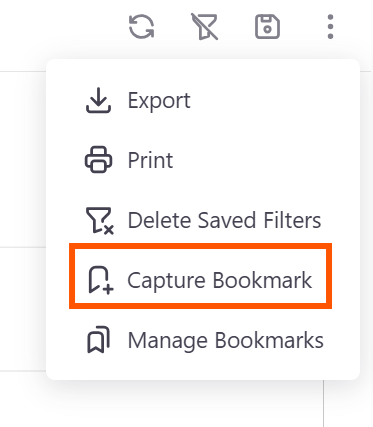
- Click the three-dot menu and press Capture Bookmark.
- Enter a Bookmark Name.
- Click Save.
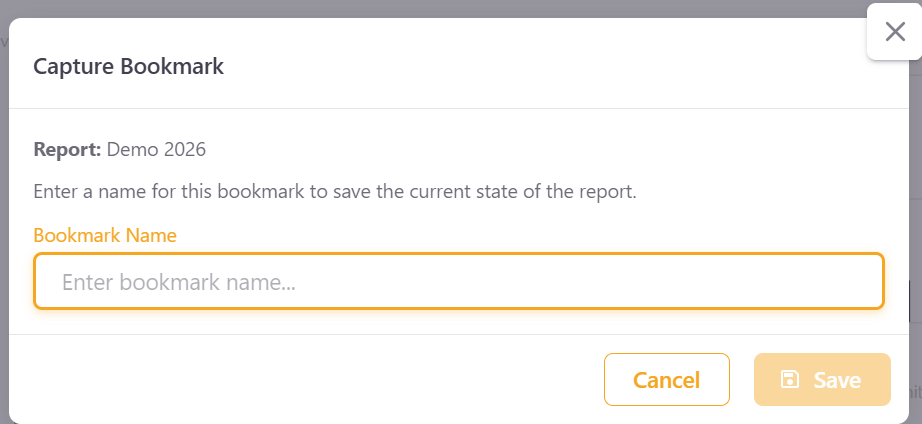
The bookmark will now appear in your bookmarks list.
Applying a Bookmark⚓︎
- Click the three-dot menu and press Manage Bookmarks.
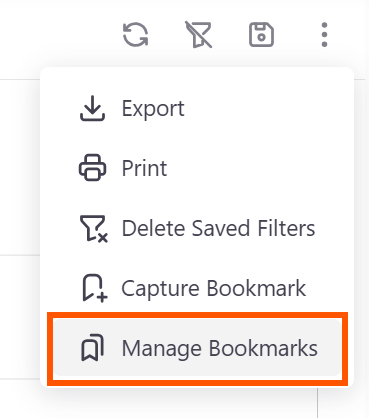
- Select a bookmark from the list by clicking on 'Apply bookmark'.
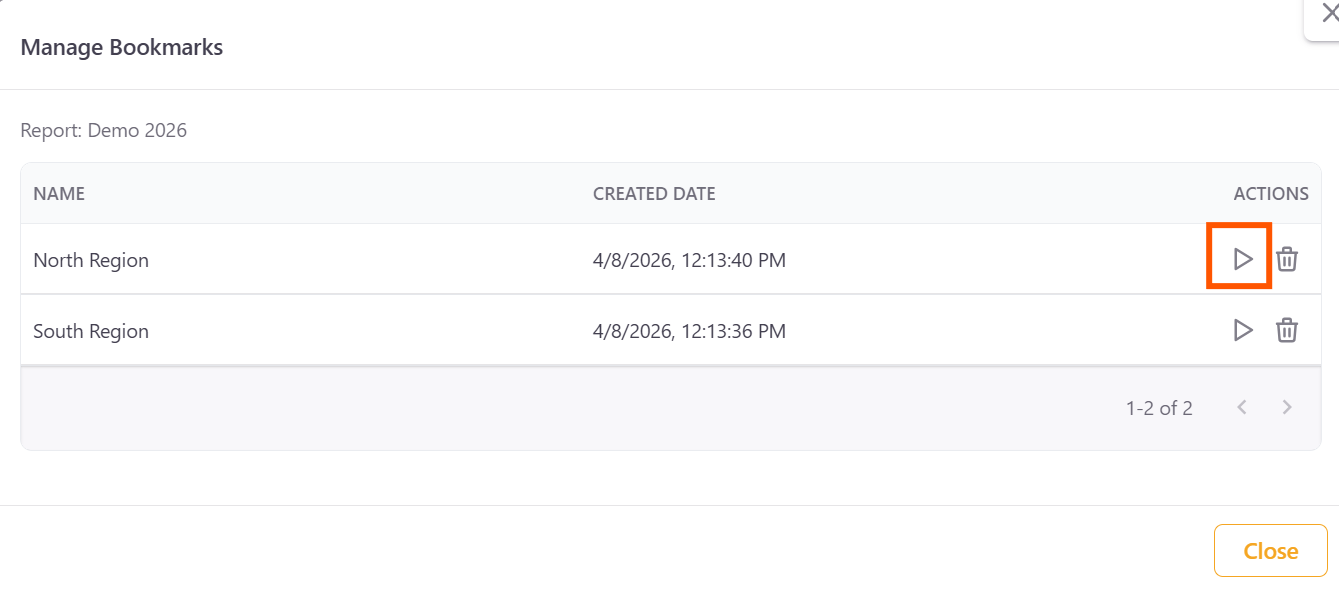
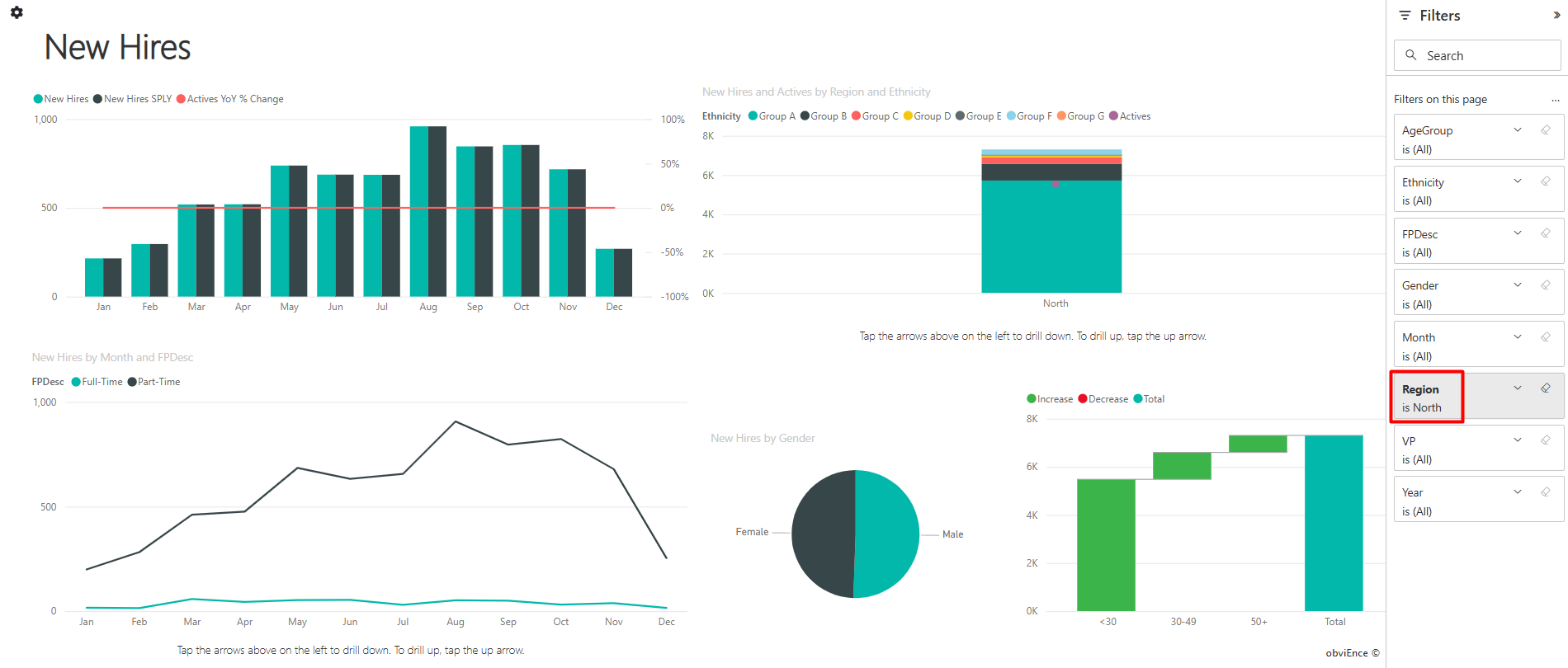
- The associated filters will be instantly applied to the view.
Deleting a Bookmark⚓︎
- Open the Manage Bookmarks dialog.
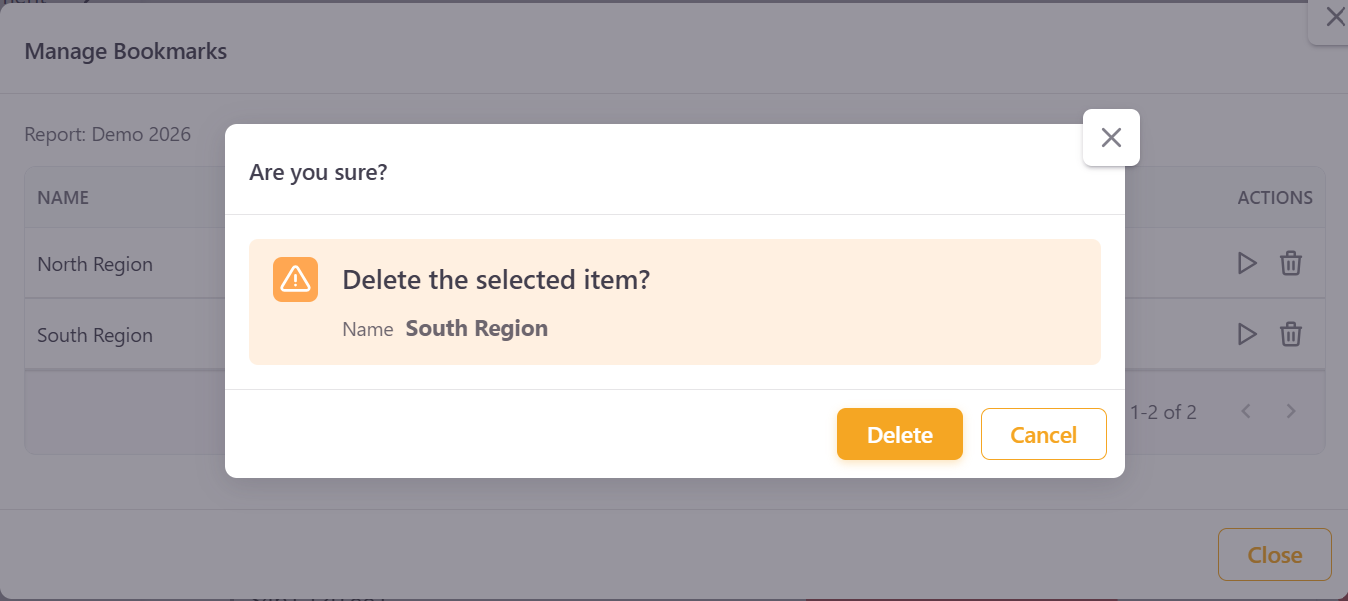
- Click the Delete icon next to the bookmark.
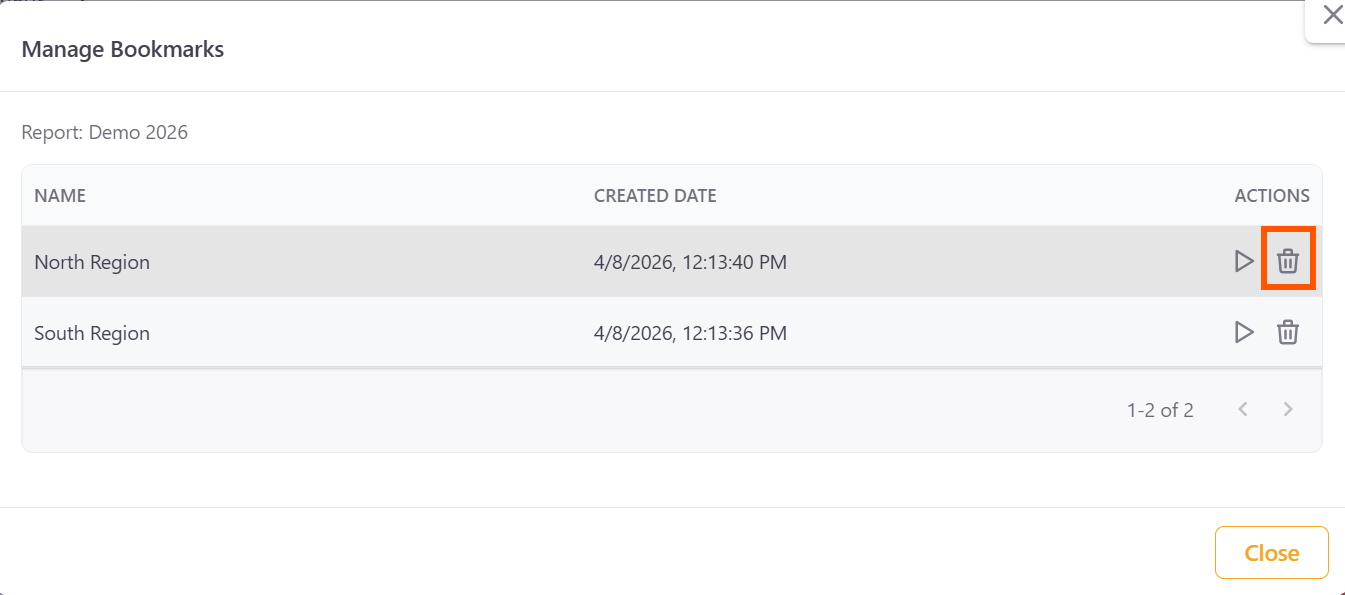
- Confirm deletion.