Data Export to Excel⚓︎
The PowerBI Portal now supports direct export of report data to Excel.
Key Benefits⚓︎
- Export all the rows returned by the report's DAX query
- Receive the result as an Excel file by email
- Ideal for in-depth analysis and offline processing in Excel
- Eliminates the need for manual copy-paste or navigating through multiple report pages
This feature represents a significant improvement in the user experience when accessing raw report data.
Usage:⚓︎
In the report's Advanced Details, open the Security & Filters tab and add the DAX query you want to use for export in the DAX Query field of the Query section.
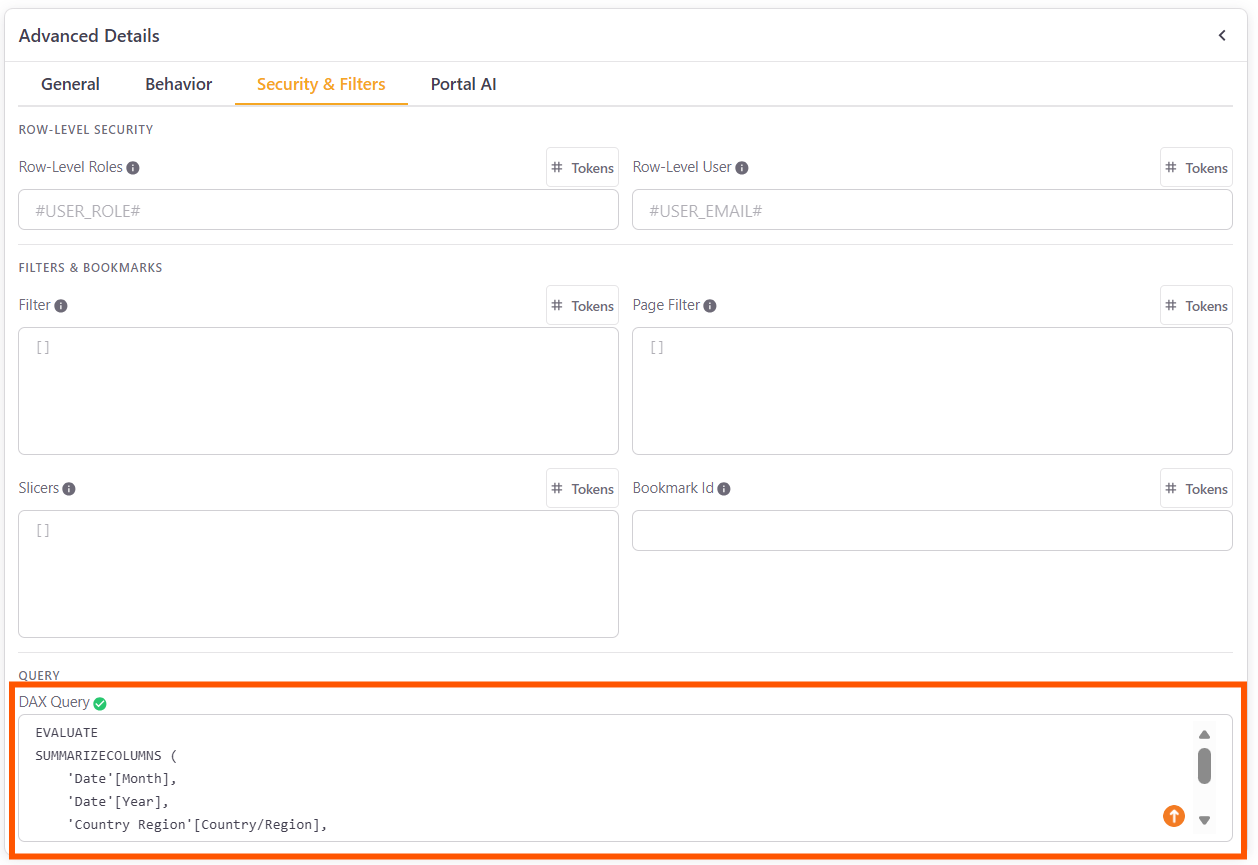
Example:
EVALUATE
SUMMARIZECOLUMNS (
    'Date'[Month],
    'Date'[Year],
    'Country Region'[Country/Region],
"Actual", [Actual],
"Amount", [Amount]
)
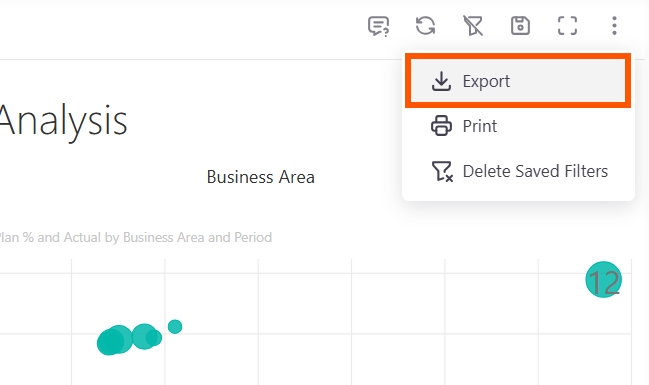
While viewing the report on the reports viewer, open the three-dot menu and click Export. A new option, Excel (All rows), is available when the report has a DAX query and Show Export is enabled for the report:
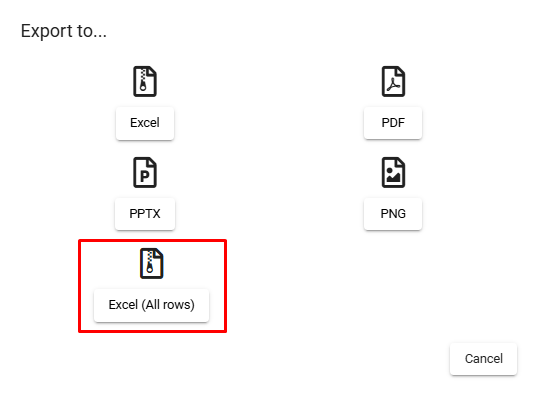
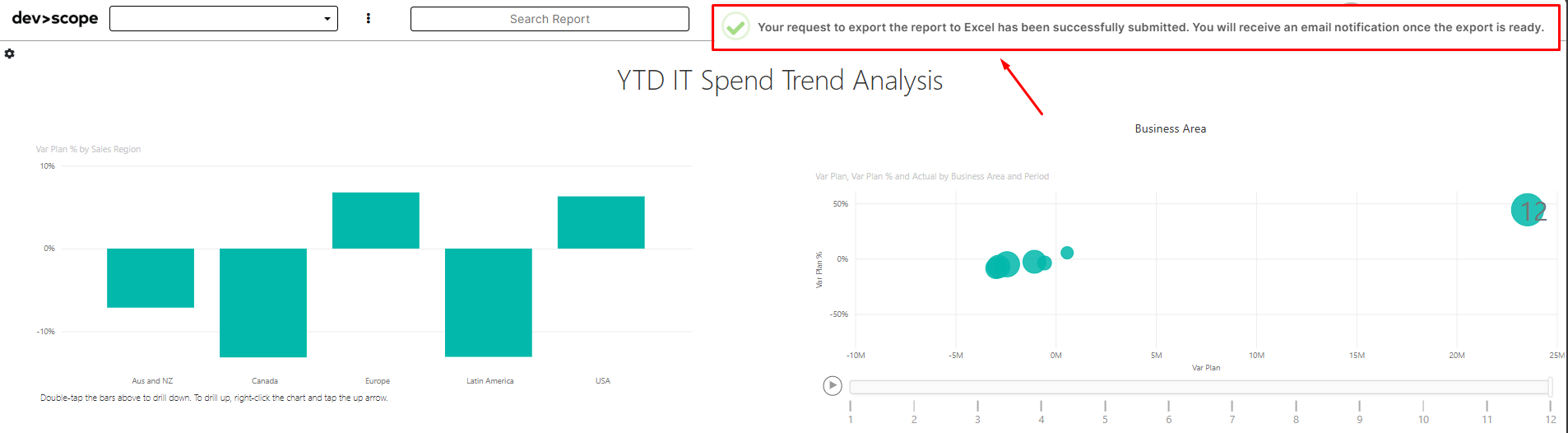
Soon after the request you will receive an email with the exported data:
Example of email received (template):

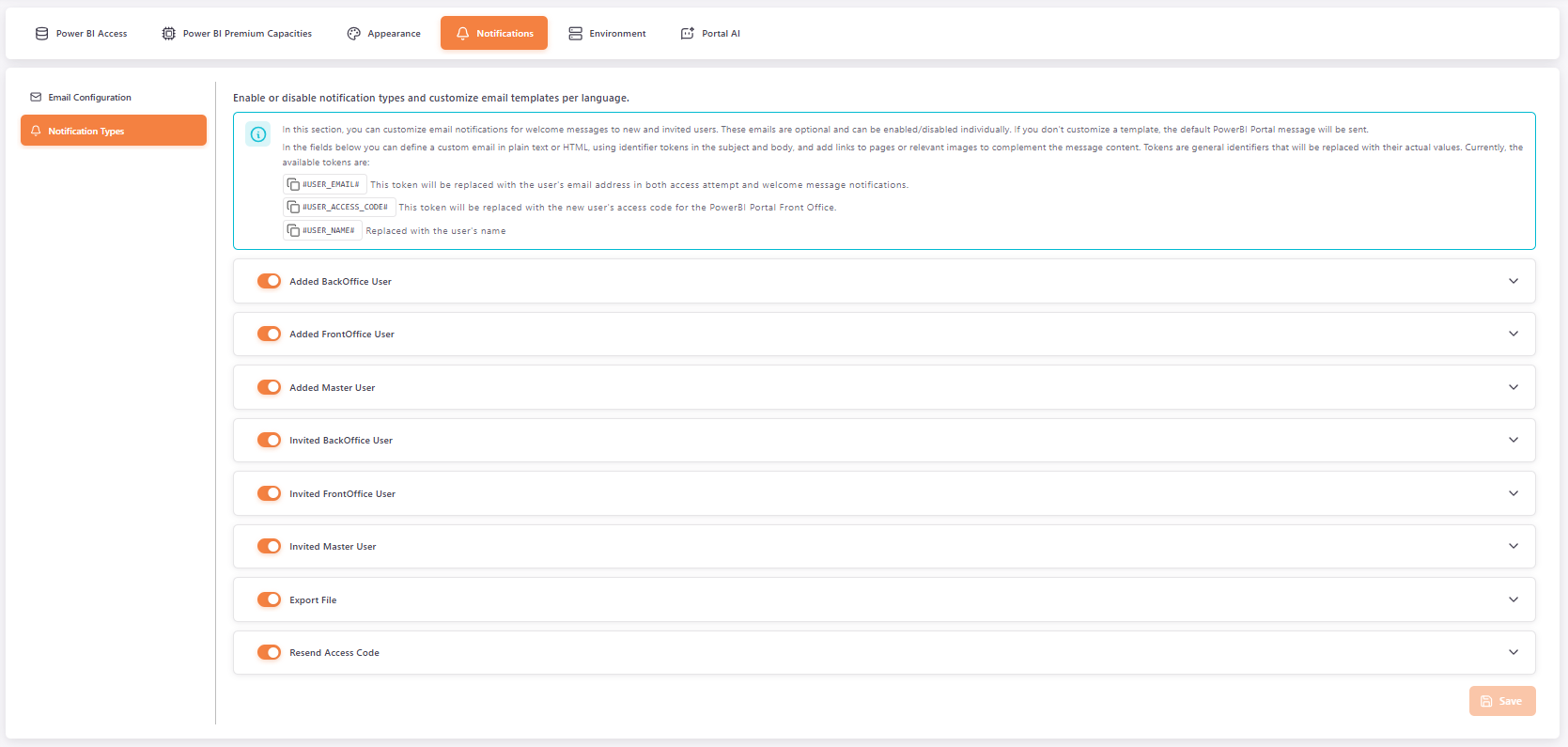
You can also change the email notification by editing the Export File notification in Settings > Notifications: