Data Hubs⚓︎
A Data Hub is a configured data source that defines how a system connects to data and what information can be retrieved. It provides a centralized, reusable way to access datasets, so users do not need to create their own database connections or queries. This promotes consistent reporting, better governance, controlled access, and reduces duplicated work.
The steps below guide you through creating a data hub and managing its access.
Create a data hub⚓︎
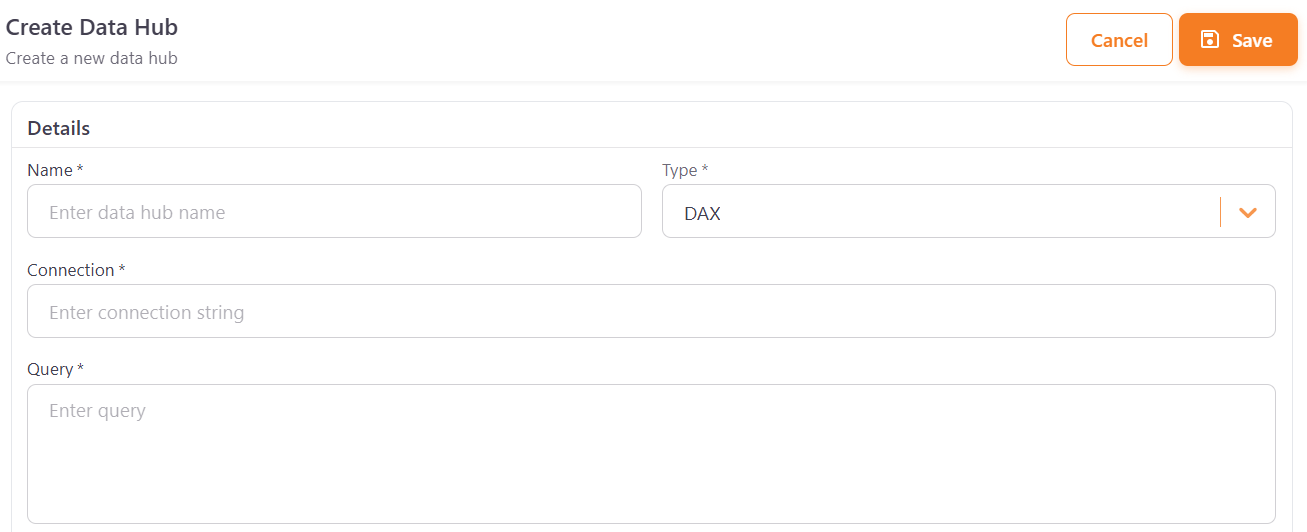
- Navigate to Resources > Data Hub > List and click Add Data Hub.
-
Under Details, fill in the following fields:
- Name — a unique display name for the data hub.
- Type — the query language used to retrieve data: DAX or SQL.
- Connection — the connection details for the database or Power BI model.
- Query — a formula that returns data.
You may also fill the remaining optional fields: Area and Sub-Area, the display Order, and the thumbnail image. For DAX data hubs, you can also select the Capacity.
-
Under Settings, use the Active checkbox to enable or disable the data hub, and the Hide Data Hub Title checkbox to hide its title from users.
- Click Save.
Configure data hub access⚓︎
To filter user access to a data hub:
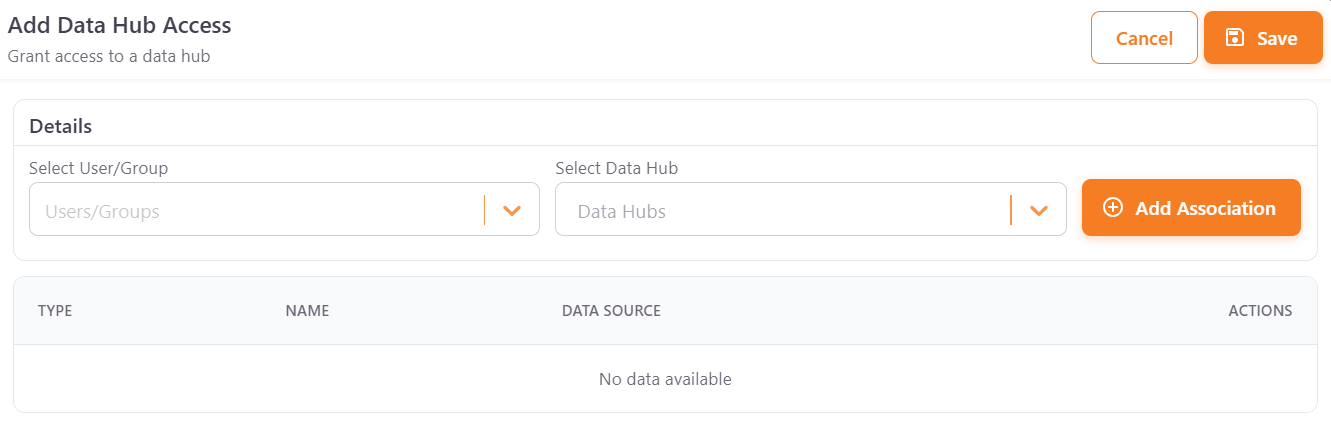
- Go to Resources > Data Hub > Access and click Add Access.
- Select a User/Group from the dropdown.
- Select the Data Hub to associate.
- Click Add Association to add it to the list, then click Save to grant access.
The configured associations are listed in the table below, where they can be reviewed or removed.
Data hub list actions⚓︎
Each data hub has the following actions:
- Edit — opens the data hub to change the details described above.
- Delete — removes the data hub. If the data hub is used by scheduled emails, a message lists them and you can click Delete data hub and scheduled emails to delete the data hub together with those emails.
- Test Connection — checks that PowerBI Portal can connect to the data source. A message tells you whether the connection was successful.
- Duplicate — creates a copy of the data hub. Confirm the action when asked.
Data hub access list actions⚓︎
The Data Hub Access Management page lists each access with its user or group. The Actions column has the following actions:
- Edit — opens the data hub settings for that user or group, so you can override them only for them. The Name, Type, and Connection can’t be changed here, but you can change the Query, Area, Sub-Area, Order, and the Settings checkboxes.
- Delete — removes the access of the user or group to the data hub.
- Revert — only shown when the access is overridden. Restores the original settings of the access. Confirm the action when asked.