Area Managers⚓︎
The Area Manager role lets a user manage the reports, files and data hubs of the areas assigned to them. It is useful when each department or team looks after its own content, while Master and Backoffice users keep managing the whole environment.
An Area Manager manages the content of each assigned area, including the content of its sub-areas. They cannot manage content in other areas, or content without an area.
What an Area Manager can do⚓︎
In the areas they manage, an Area Manager can:
- Add, edit and delete reports and data hubs.
- Edit and delete files.
- Give and remove access to these reports, files and data hubs, for any user or group of the environment, and edit the access overrides.
- Open the Reports Viewer, like any other user.
An Area Manager cannot:
- Manage users, groups, playlists, scheduled emails, areas or the environment settings.
- Add files. New files are selected from the storage of the whole environment, which is why only Master and Backoffice users can add them.
- Create areas or sub-areas from the Area and Sub-Area fields.
- Change the Allow direct to default option of a report. They can still change it on the access override of a user or group.
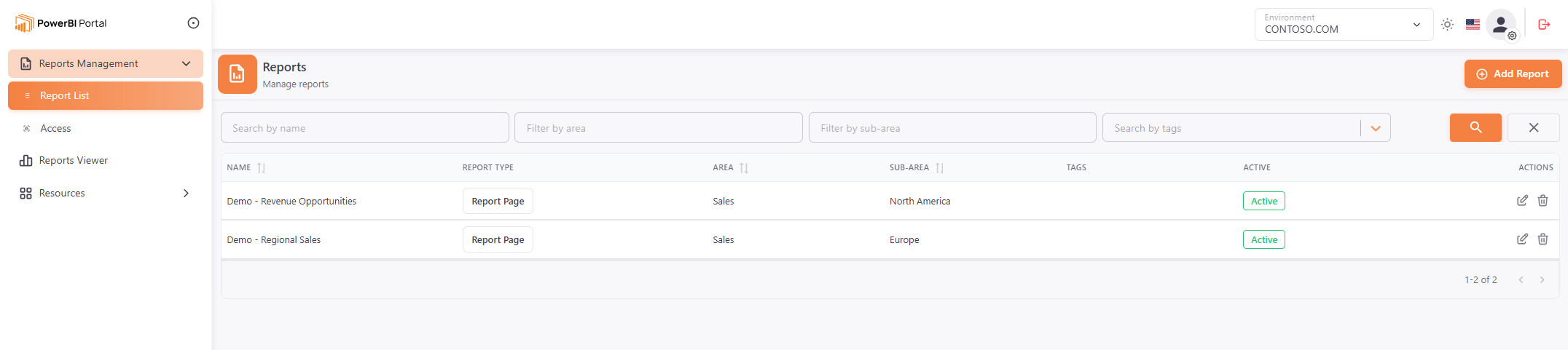
The navigation menu of an Area Manager only shows Reports Management, Reports Viewer and Resources (Data Hub and Files). The lists show only the content of the areas they manage.
Assign the role to a user⚓︎
Master and Backoffice users assign the role in the user form.
- Go to Users > User List, and click Add User, or Edit on an existing user.
- In Roles, select Area Manager.
- In Managed Areas, select the areas the user manages.
- Click Save.
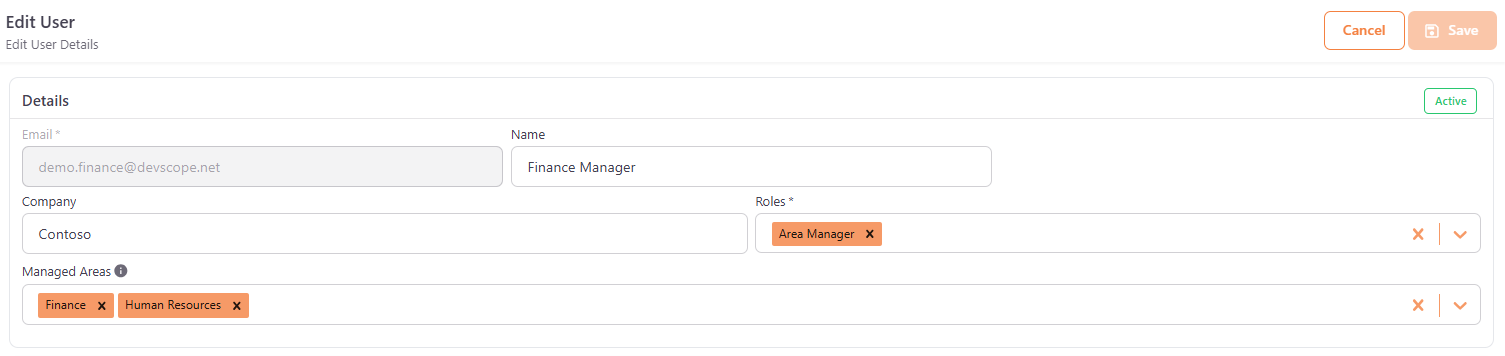
The Area Manager role cannot be combined with other roles. Area Managers can already open the Reports Viewer, so they don't need the Frontoffice role.
You can save an Area Manager without areas, for example to assign them later. In that case the form shows the message No areas assigned: this Area Manager cannot manage any content yet, and the User list shows a warning icon next to the role.
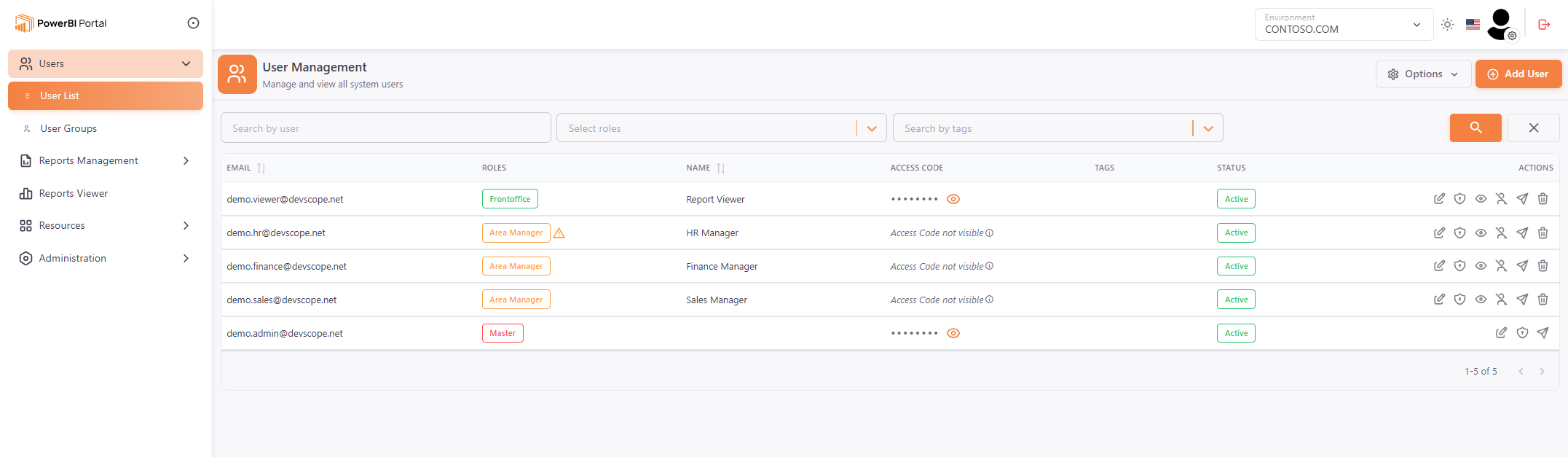
The role and the managed areas apply only to the current environment. To see who manages each area, filter the User list by the Area Manager role, or open the area as described below.
Import Area Managers⚓︎
You can also assign the role when you import users:
-
Import from Excel: in the Roles column, write
Area Manager. In the Areas column, write the names of the managed areas, separated by semicolons (for example,Sales;Finance). Fill the Areas column only for Area Managers. The areas must already exist: if a name is not found, the preview shows an error and the import is blocked.Warning
Always download the latest Excel template before you import. Files created from an older Excel template may not match the current columns, such as the new Areas column.
-
Import via Microsoft Entra ID: select the Area Manager role for a user, and then click the Managed Areas cell of that user to select the areas.
The automatic import from Microsoft Entra ID and the Public API cannot assign the Area Manager role. See Manage Users for the full import steps.
Manage the Area Managers of an area⚓︎
You can also see and change who manages an area from the area itself.
- Go to Administration > Areas and Sub-Areas, and click Edit on the area.
- In Area Managers, add or remove users.
- Click Save.
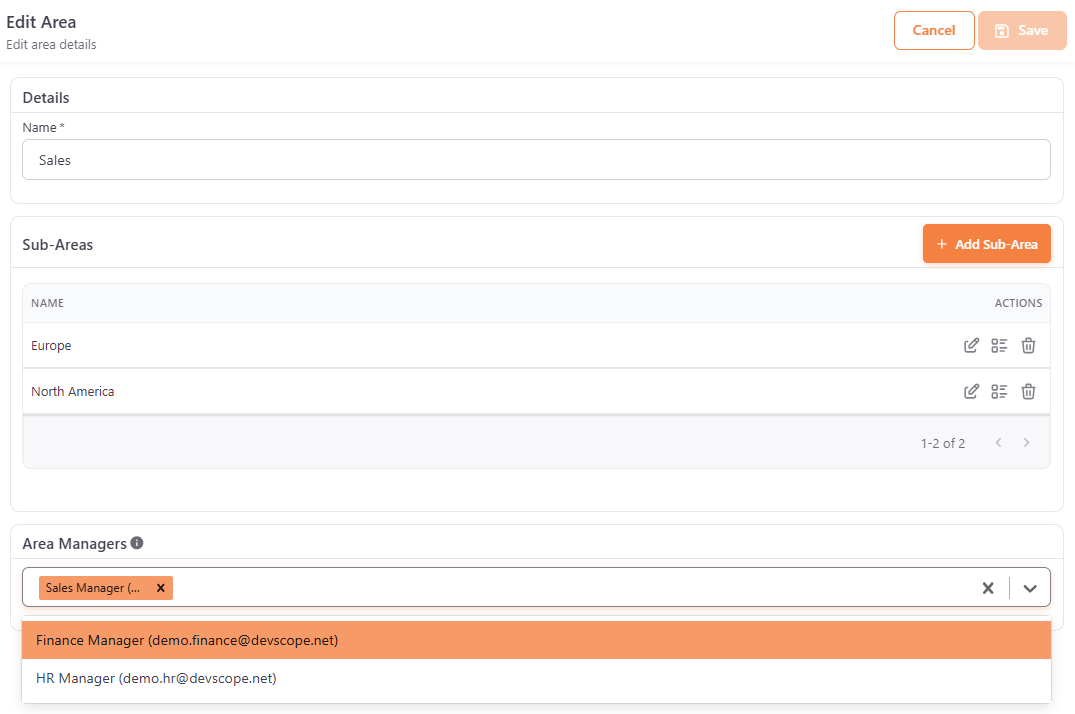
Only users who already have the Area Manager role are listed. To make a new user an Area Manager, assign the role in the user form first. The Area Managers section is available after the area is created.
The user form and the area form change the same assignments, so a change in one is shown in the other.
Work as an Area Manager⚓︎
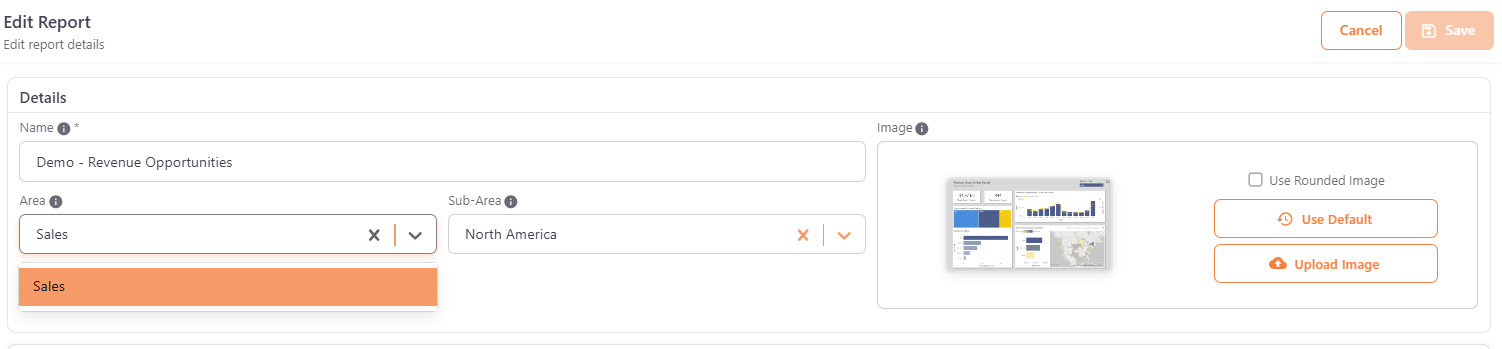
When an Area Manager adds or edits a report or a data hub, the Area field lists only the areas they manage, and an area is required. The Sub-Area field lists the sub-areas of the selected area.
The Access pages of reports, data hubs and files show only the access to content of the managed areas. When an Area Manager gives access, they can select any user or group of the environment.
Managing an area does not give access to its reports in the Reports Viewer. Like any other user, an Area Manager only sees the reports they have access to. To see a report there, an Area Manager can give access to themselves on the report's Access page.
Note
If a user tries to open or change content outside the areas they manage, for example through a direct link, PowerBI Portal shows the message This content is outside the areas you manage.
Remove an Area Manager⚓︎
- To stop a user from managing one area, remove them from Managed Areas in the user form, or from Area Managers in the area.
- To remove the role, change the Roles of the user and click Save. The user stops managing all areas, and the area assignments are removed. The access they have to reports, files and data hubs in the Reports Viewer is kept.
- When you delete an area, its Area Managers stop managing it. The Associations of the area list the Area Managers, so you can review them before you delete it.
Notifications and security⚓︎
When you add an Area Manager, PowerBI Portal sends the Added Area Manager or Invited Area Manager notification. You can customize them in Notifications, and use the #AREA_NAMES# token to show the names of the managed areas in the email.
Area Managers follow the Multi-Factor Authentication (MFA) option Enable Multi-Factor Authentication (MFA) for users with Backoffice, Master or Area Manager role. See Security Settings.