Security Settings⚓︎
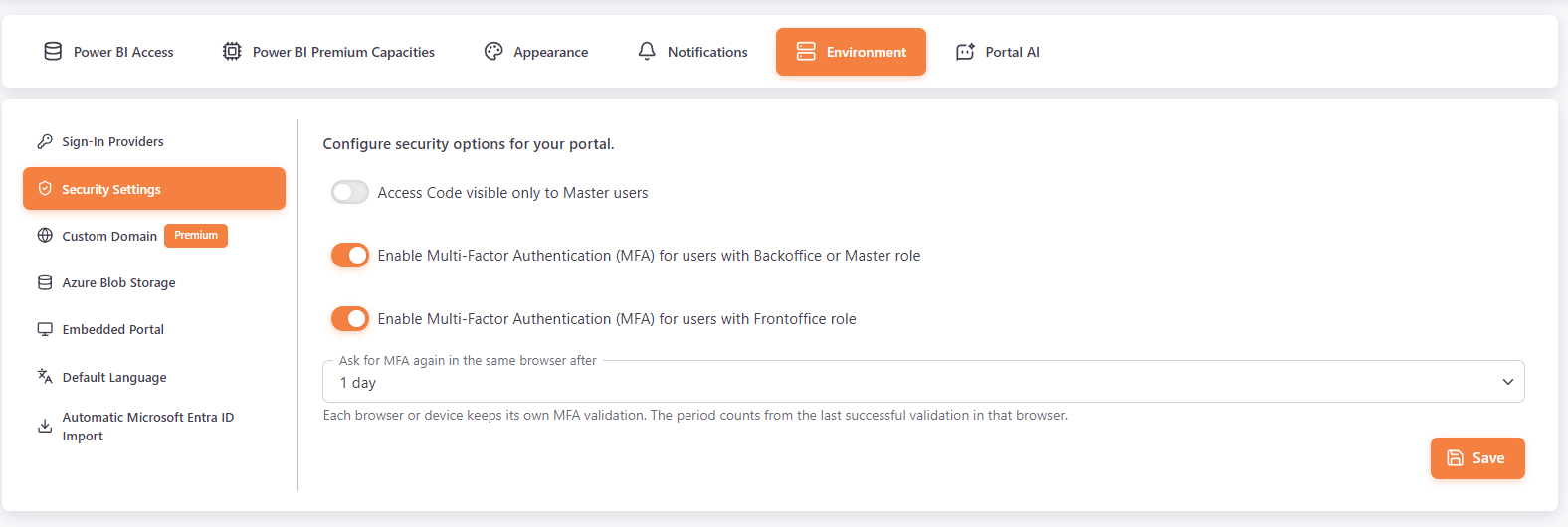
In Settings > Environment > Security Settings, Master users configure the security options of the portal.
- Access Code visible only to Master users: only Master users can see the access codes.
- Enable Multi-Factor Authentication (MFA) for users with Backoffice, Master or Area Manager role
- Enable Multi-Factor Authentication (MFA) for users with Frontoffice role
- Ask for MFA again in the same browser after: how long an MFA validation lasts in the same browser. Select Every login, 1 hour, 8 hours, 1 day, 7 days, 14 days or 30 days. The default is 1 day. This field is only available when MFA is enabled for at least one of the roles.
Click Save when you are done.
Each browser or device keeps its own MFA validation. The period counts from the last successful validation in that browser.
Revoke MFA validations⚓︎
When MFA is enabled, you can click Revoke MFA validations and confirm. Every user of the environment must then validate MFA again on their next interaction with PowerBI Portal, in every browser and device, including yours. This cannot be undone.
Tip
You can customize the MFA page in Appearance and the email with the validation code in Notifications.