View Reports⚓︎
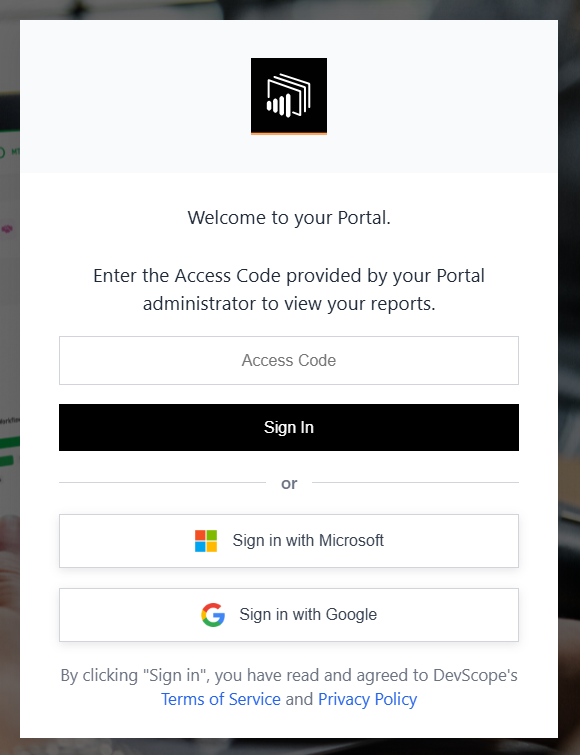
All users added to PowerBI Portal have access to the reports associated with their account. After signing in with their unique access code, or with the Sign in with Microsoft or Sign in with Google button when that sign-in method is enabled, they are sent to the Portal home page.
Browse your reports⚓︎
Reports are listed on the reports page, which is also the home page after you sign in. Backoffice users and Master users can open it at any time by clicking Reports Viewer in the navigation menu.
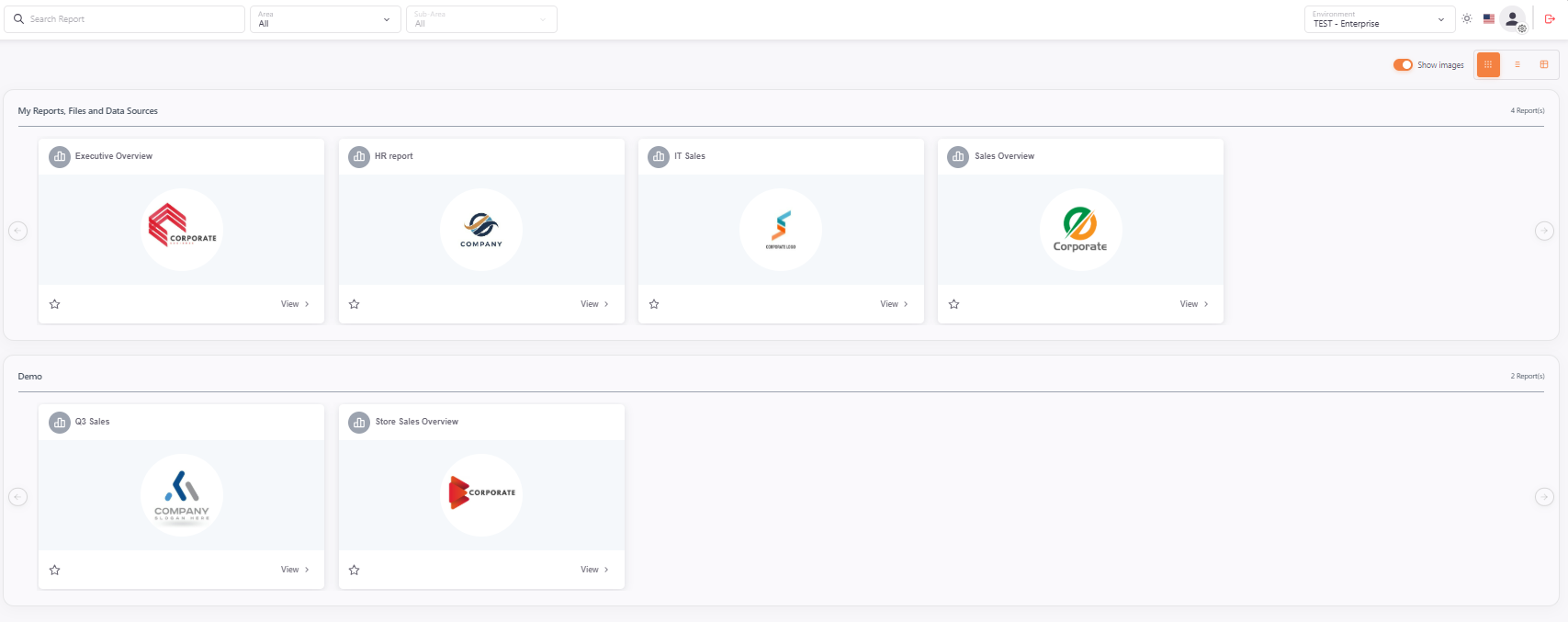
The page lists the reports, files, and data sources you have access to, grouped by area. You can:
- Type in the Search Report box to search your reports.
- Select an area to narrow the list. Besides your own areas, the selector offers All, My Reports, My Files, My Data Sources, and My Favorites.
- Click the star on an item to add it to, or remove it from, My Favorites.
- Turn Show images on or off to show or hide the report images.
- Switch between the grid, list, and table layouts using the three buttons at the top right of the page.
Each item has a button to open it: View for reports, Open for files, and Download for data sources.
Work with an open report⚓︎
After opening a report, you can check its name at the top of the screen. Click the back arrow to return to the reports page.
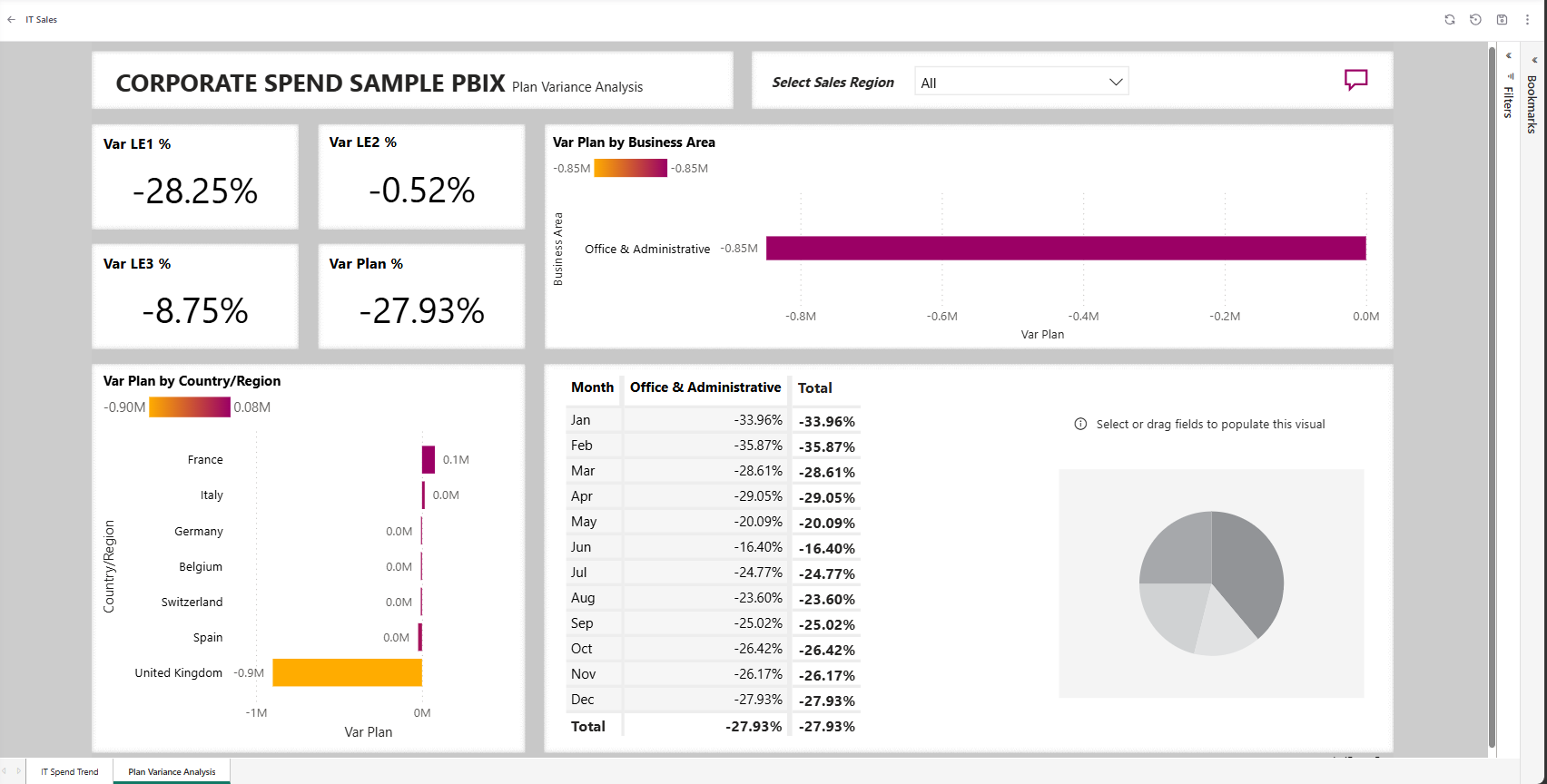
The toolbar at the top right shows only the options that your administrator enabled for the report. See Manage reports for the settings that control them.
| Button | What it does |
|---|---|
| Enter Q&A / Exit Q&A | Turns the Power BI Q&A mode on or off. Shown when Allow Q&A is enabled for the report. |
| Refresh | Reloads the report data. |
| Reset Filters | Resets all filters on the current page. See Report filters. |
| Save Filters | Saves the filters and slicers of the current page, so they are applied the next time you open the report. Available for reports and visuals only. |
| Expanded / Exit Expanded | Hides the report header so the report fills the screen. |
The three-dot menu next to these buttons contains more options. It is not available for paginated reports.
| Option | What it does |
|---|---|
| Export | Opens the export dialog. See Export a report. |
| Prints the report. | |
| Edit Mode / Exit Edit Mode | Switches the report to edit mode. See Report edit mode. |
| Delete Saved Filters | Deletes the filters you saved with Save Filters. |
| Capture Bookmark | Saves the current filters as a bookmark. See Bookmarks. |
| Manage Bookmarks | Lists your bookmarks so you can apply or delete them. |
| Fullscreen | Shows the report in full screen. |
Export a report⚓︎
- Open the three-dot menu and click Export.
- Choose the format:
- Excel
- Excel (All rows) – only available when the report has a DAX query configured. See Data export to Excel.
- PowerPoint
- Image – exported as a PNG image.
- For PDF, PowerPoint, and Image, select the pages to export and confirm. PowerBI Portal prepares the file and sends it to you by email when it is ready.
- For Excel (All rows), the export request is submitted and you receive an email when the export is ready.