Report Filters⚓︎
Filters control how a report looks when it opens. Administrators can preset the filters, slicers and bookmark of a report, and users can keep their own filters between visits.
Preset filters, slicers and bookmark⚓︎
Use these fields to open a report in a specific state for everyone who has access to it.
- Open the Reports List page and add a new report or edit an existing one.
- Expand Advanced Details and open the Security & Filters tab.
-
In the Filters & Bookmarks section, fill in the fields you need:
- Filter – pre-applies a filter to the entire report on load.
- Page Filter – pre-applies a filter to a specific page on load.
- Visual Filter – pre-applies a filter to a specific visual on load.
- Slicers – sets the initial slicer state when the report loads.
- Bookmark Id – loads a saved Power BI bookmark on start. Enter the bookmark ID from Power BI Service.
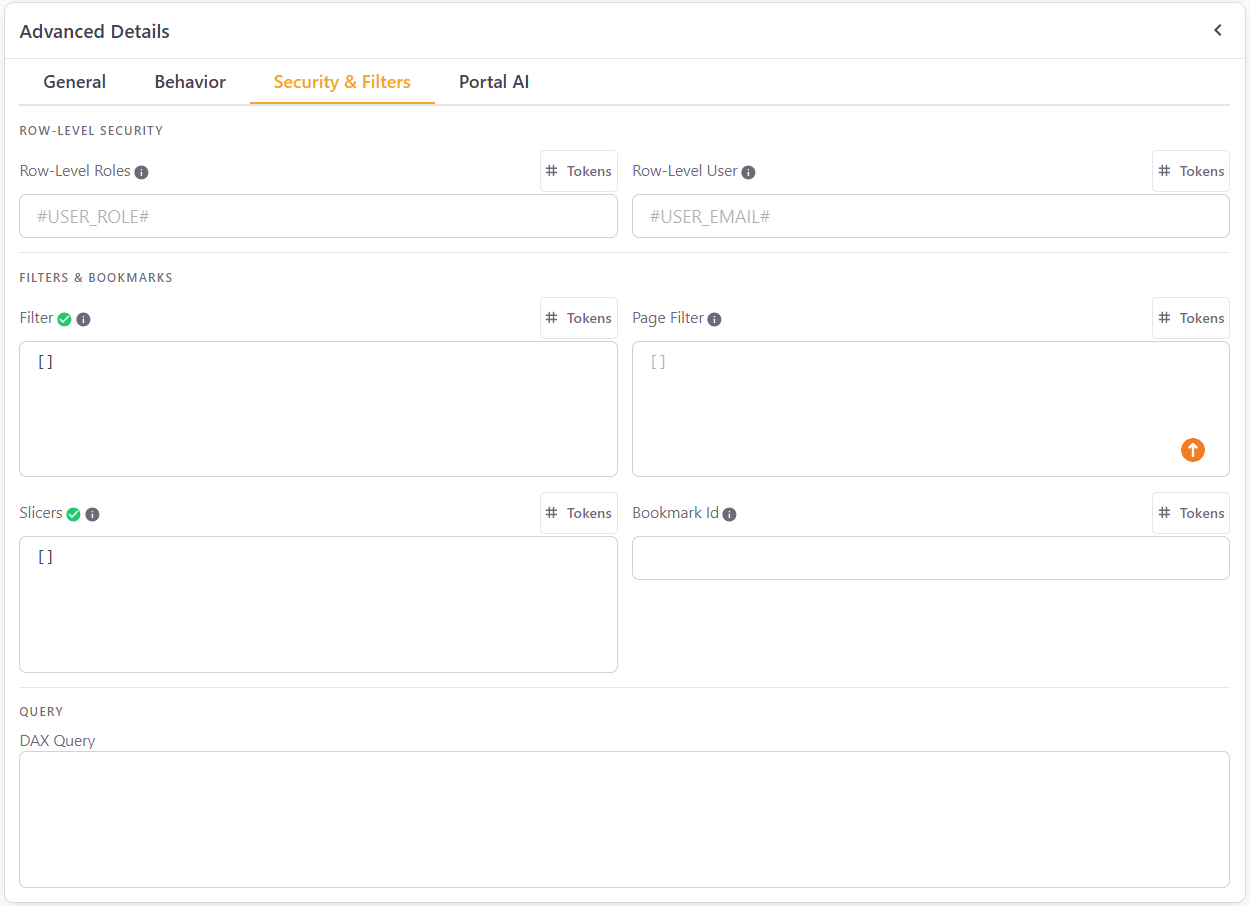
Report settings - Security & Filters tab -
Save the report.
The filter and slicer fields use the Power BI JSON format and support tokens. See Tokens and RLS. Which fields are shown depends on the report type. See Manage reports.
Tip
You do not have to write the JSON by hand. In the Power BI Embedded Url field, click the Edit Filters & Bookmarks icon to open the report, choose the filters, slicers or bookmark you want, and click Apply. The fields are filled in for you. When you edit an existing report, you can also click the Clear Filters icon and confirm to remove all the filters and bookmarks.
The Edit Filters & Bookmarks icon is not available for dashboards, dashboard tiles, paginated reports, and reports added by pasting the URL instead of choosing them in the Select Power BI Content window (shown as Manual in the Report Type column).
Saved filters⚓︎
Users can keep the filters they apply, so the report opens the way they left it. This is controlled by four settings in the Toolbar section of the Behavior tab of the report:
- Show Reset Filters – shows the Reset Filters button.
- Show Save Page Filters – shows the Save Filters button and the Delete Saved Filters option.
- Save End User Filters – automatically saves the filters applied by each user and restores them the next time the report is opened.
- Save End User Last Active Page – automatically saves the last page viewed by each user and reopens the report on that page during their next visit.
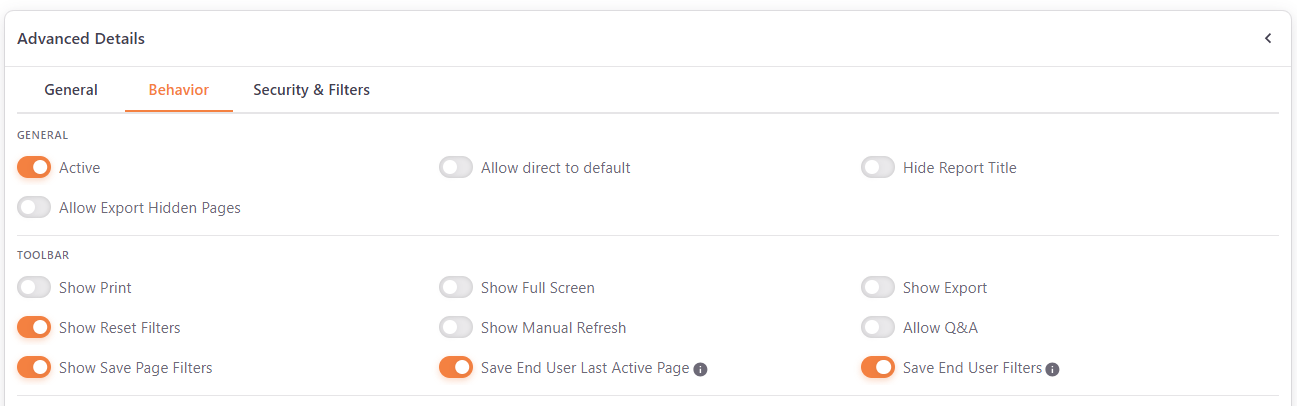
These settings can also be set for specific users or groups. See Associate a report to a user.
Save filters⚓︎
- Open a report and apply the filters and slicers you want.
- Click Save Filters in the toolbar.
Filters saved successfully confirms that they were saved. PowerBI Portal saves the report filters, page filters, visual filters and slicers of the current page.
Open a report with saved filters⚓︎
When you open a report, your saved filters for that page replace the filters, slicers and visual filters set by the administrator. This applies to Report Page and Visual items. When you go to another page of the report, your saved filters for that page are applied the first time you open it.
Reset filters⚓︎
Click Reset Filters in the toolbar. PowerBI Portal removes the report filters and the filters of the current page, and applies again the filters set by the administrator. Your saved filters are ignored.
Delete saved filters⚓︎
Open the three-dot menu and click Delete Saved Filters.
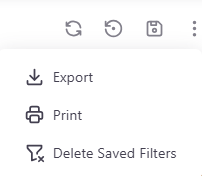
The saved filters of the current page are deleted, and the filters set by the administrator are applied again. Saved filters deleted successfully confirms it.
Info
Saved filters belong to each user. Other users of the same report are not affected.