Power BI Embedded/Fabric Settings⚓︎
If you are using Premium per capacity you can skip this step since PowerBI Portal does not need to manage your capacity. However, please make sure you add reports from workspaces that use your capacity.
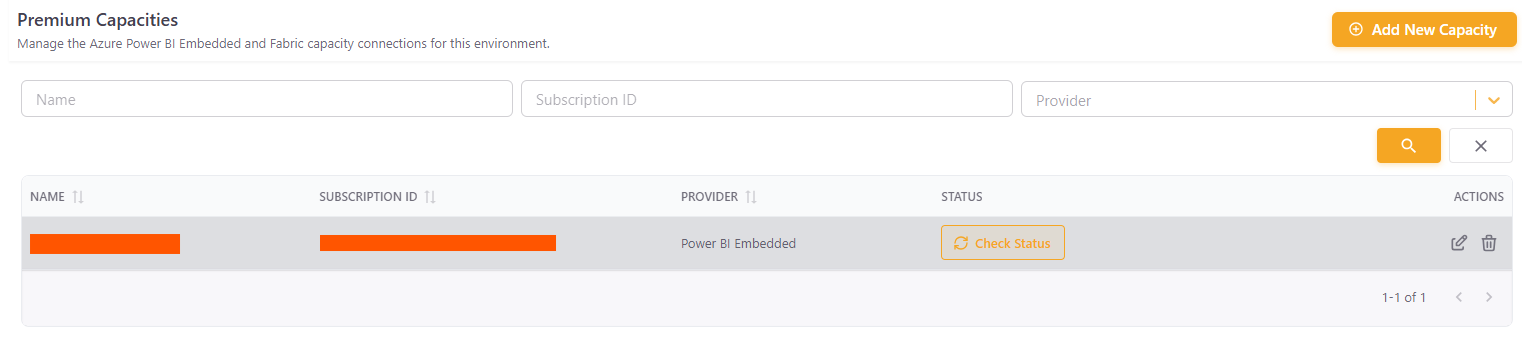
- Subscription ID: your Capacity Subscription ID
- Resource Group Name: Your capacity’s Resource Group Name
- Dedicated Capacity Name: The dedicated capacity name
- Timeout: The number of minutes of no usage for PowerBI Portal to automatically pause the Capacity Service.
- Example:
- 20 minutes - If no one uses PowerBI Portal for 20 min, at the end of those 20 minutes, or slightly later, the capacity service is automatically stopped to save resources.
- 0 minutes - The capacity never stops to save resources, not even if PowerBI Portal isn’t being used.
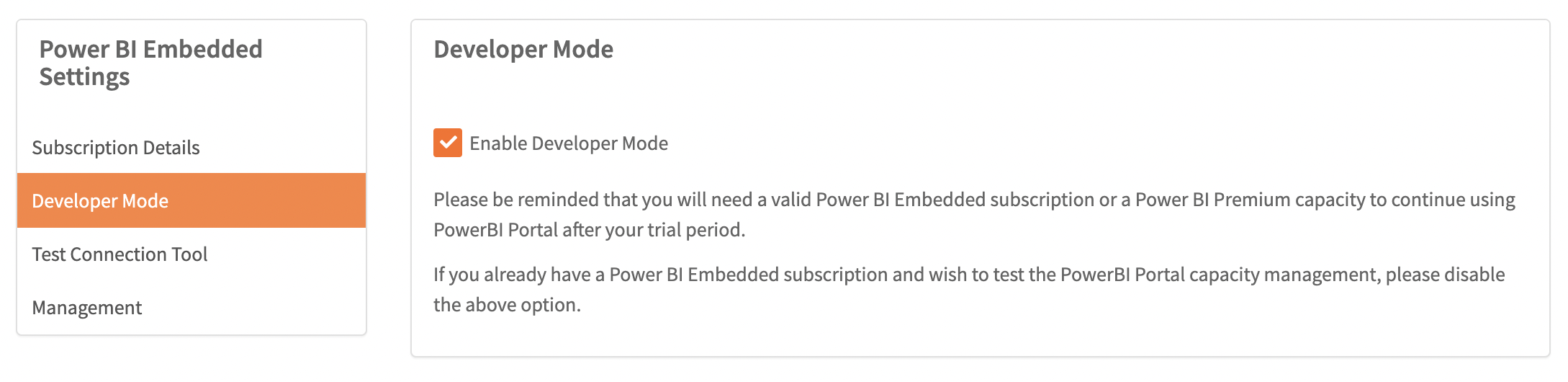
- Enable Developer Mode: Put the frontoffice in developer mode. This will disable the capacity usage check on the frontoffice
- Test Connection Tool: You can pause, resume and check the capacity status
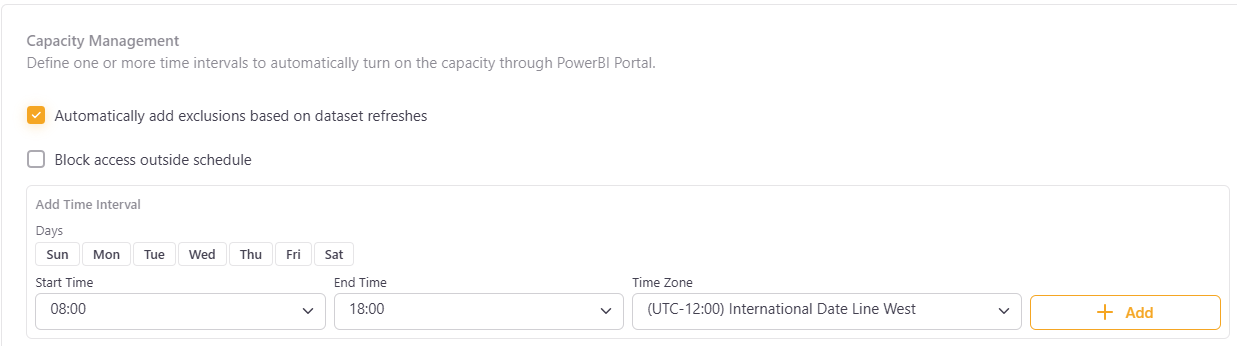
- Capacity Management: Define one or more time intervals to automatically turn on the capacity through PowerBI Portal
- Automatically add exclusions based on dataset refreshes: Automatically creates exclusions covering the scheduled refresh times of the datasets behind this capacity's reports. Exclusions are updated once a day (they can take up to ~24 hours to appear) and only for datasets with a scheduled refresh enabled and at least one completed refresh, used to estimate the exclusion window duration.
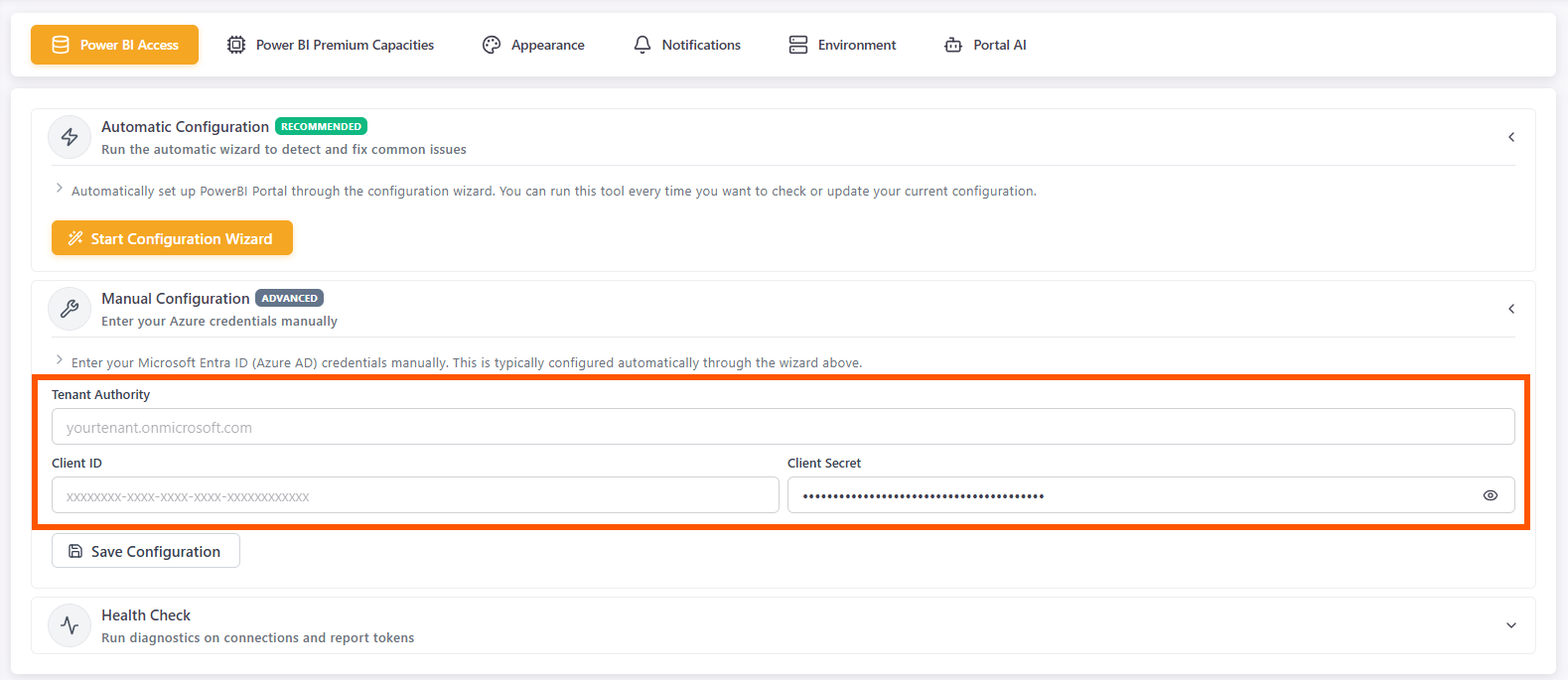
- By default, we use the PowerBI Portal app to access your capacity service. However, you can create a new application and provide your own ClientId and Client Secret.
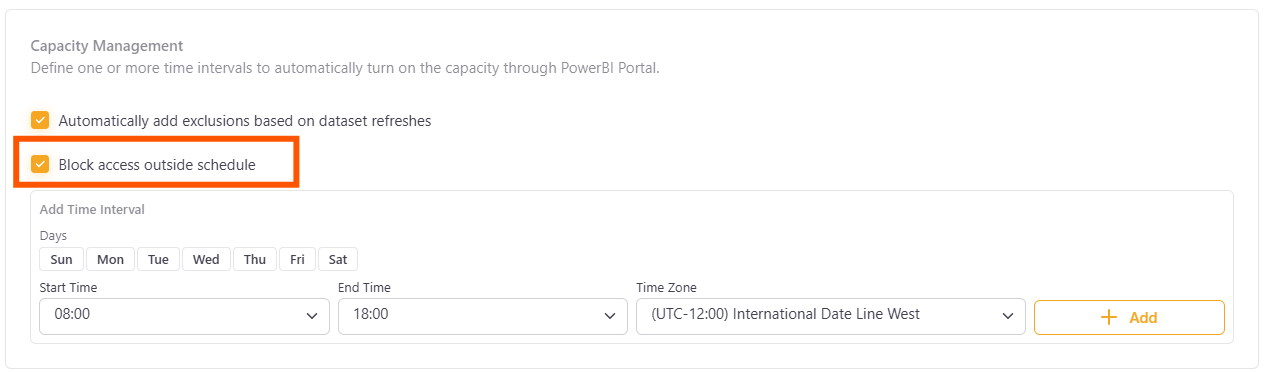
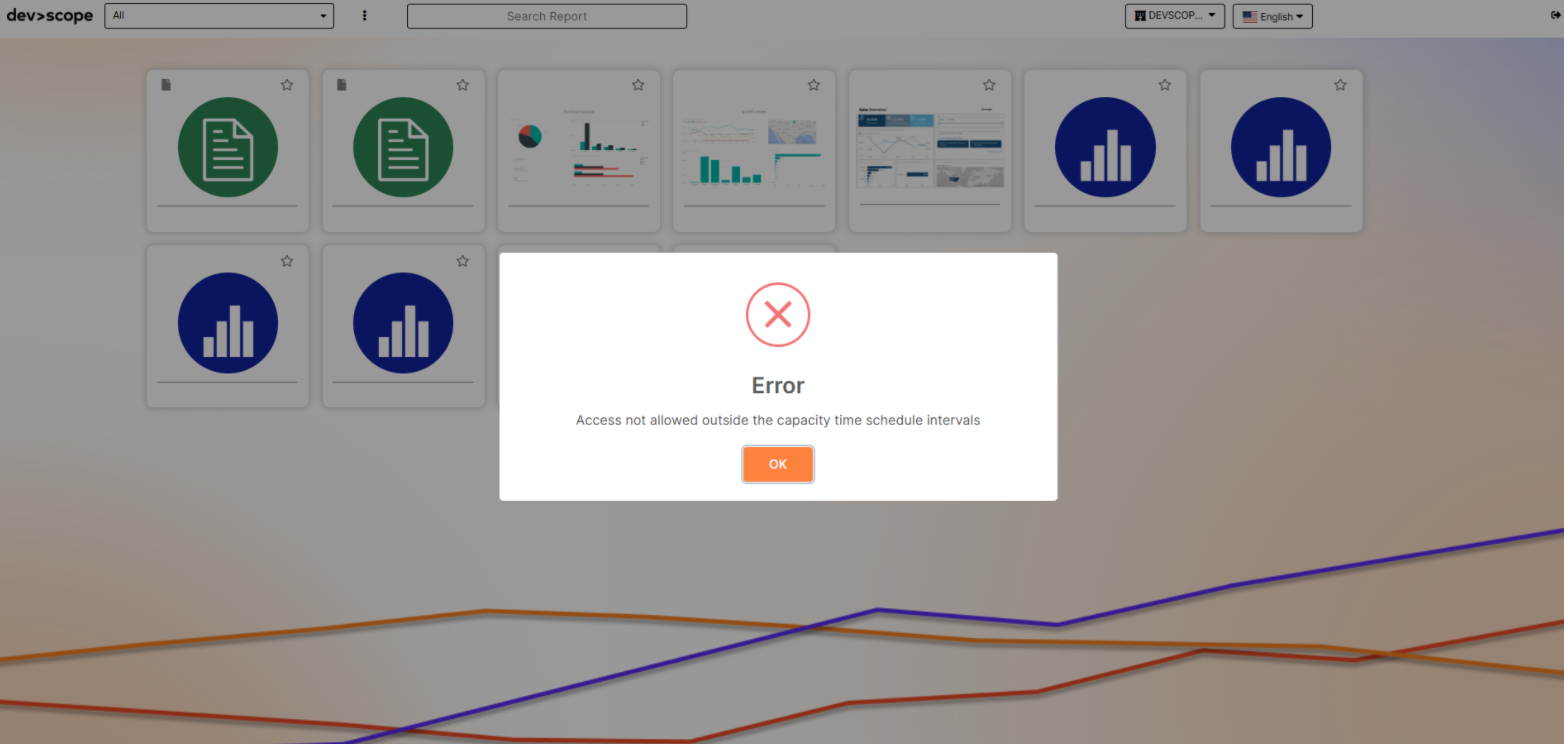
- By selecting the option 'Block access outside schedule', front office users cannot access the reports; consequently, the capacity won't resume outside of the scheduled time.